
Best Keyboard Trays 2026
A keyboard that sits too high forces your wrists to bend upward all day, and a keyboard that sits too low pulls your shoulders forward. Either way, the ache arrives by mid-afternoon, and no amount of stretching quite fixes it. The desk is rarely the problem. The height of the keyboard is.
A keyboard tray solves that problem in the simplest way possible: it moves the keyboard off the desktop and onto a platform that slides, tilts, and sits at the height your arms actually want. These are the best keyboard trays of 2026, chosen for smooth sliding, steady support, comfortable typing angles, and build quality that survives years of daily use.
Key Takeaways
- Buy the tray for the keyboard and mouse you actually own, because a tray that is too narrow forces the mouse onto the desktop and defeats the point.
- Height and tilt matter more than brand, since your forearms should rest level and your wrists should stay straight while you type.
- Sliding trays suit fixed desks, while clamp-on trays suit desks you cannot drill into, and ergonomic trays suit anyone with wrist or shoulder pain.
- Check the slide mechanism and the weight limit before you fall for a finish, because a tray that sags or sticks will annoy you every single day.
- Measure the space under your desk first, including the drawer, the crossbar, and your knees, since a tray that does not fit underneath is useless.
Keyboard Trays 2026 at a Glance
| Best for | Tray type | Width | Standout strength |
|---|---|---|---|
| Best overall | Sliding under-desk tray | 65 cm | Smooth, steady, and out of sight |
| Best for wrist pain | Ergonomic tilting tray | 68 cm | Negative tilt keeps wrists straight |
| Best for small desks | Compact sliding tray | 55 cm | Frees the desktop without a big footprint |
| Best for renters | Clamp-on tray | 65 cm | No drilling, no screws, no damage |
| Best for large setups | Wide tray with mouse platform | 80 cm | Room for a full keyboard and mouse |
| Best for standing desks | Height-adjustable tray | 68 cm | Adjusts as the desk moves up and down |
What a Keyboard Tray Is Really For
A keyboard tray does three jobs at once. First, it lowers the keyboard below the desktop, so your forearms can rest level instead of reaching upward. Second, it gives the keyboard and mouse a dedicated surface, which frees the desktop for papers, a notebook, or simply empty space. Third, it slides away when you are done, so the desk looks tidy and your knees have room.
It helps to know the difference between a tray and its close cousins. A laptop stand lifts a whole computer to eye level, and our guide to the best laptop stands of 2026 covers that kind of raised support in detail. A keyboard tray is a different tool: it lowers the keyboard rather than raising the screen, and the right choice depends on your desk, your keyboard, and your body.
Getting the Height Right
Height is where most keyboard tray purchases go wrong. The rule is simple: when you sit with your back against the chair, your upper arms should hang relaxed at your sides, your elbows should bend at roughly ninety degrees, and your forearms should run level to the keyboard. Your wrists should stay straight, neither bent up nor drooping down.
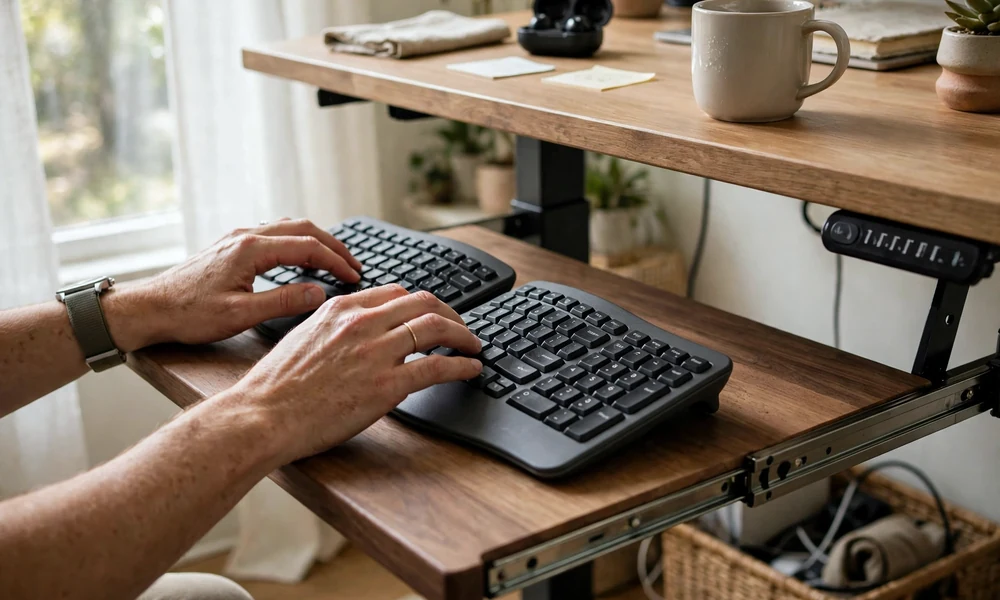
Tilt is the other half of the height question. A tray that tilts slightly downward, away from you, is called a negative tilt, and it is the position ergonomists recommend, because it keeps the wrists straight while the fingers fall naturally onto the keys. A tray that tilts upward does the opposite, forcing the wrists to bend back, so avoid it unless you have a specific reason to type that way.
The Main Types of Keyboard Tray
The sliding under-desk tray is the safest choice for most homes: a flat platform on metal ball-bearing slides that mounts beneath the desktop and pulls out when you need it. Its strength is simplicity, since it disappears when pushed in and the slide feels smooth for years. Its weakness is installation, since it needs screws and a flat underside to mount onto.
The ergonomic tilting tray adds height and tilt adjustment to the same sliding idea, and it is the best choice when your wrists or shoulders already ache. The platform can drop lower than a fixed tray and tilt downward, so the keyboard meets your hands instead of your hands reaching for the keyboard. The trade-off is price and bulk, since the mechanism is heavier and the tray sits lower, which can crowd your knees.
The clamp-on tray is the answer to a desk you cannot drill into. It grips the edge of the desktop with heavy clamps, so renters and owners of glass or thin desks can use it without damage. Clamp-on trays are usually easy to move between desks, but they need a desktop edge thick enough to grip firmly, so check the clamp range before you buy.

The wide tray with a mouse platform is the best option for anyone with a full-size keyboard. A standard keyboard is about 45 centimetres wide, and a mouse needs another 20 centimetres beside it, so a tray under 65 centimetres wide forces a compromise. Wide trays run 75 to 85 centimetres and give both devices room, which matters more than most people expect, since a cramped mouse hand is a sore mouse hand.
Materials and Build Quality
Steel is the classic choice for the tray itself, and it earns its price. A steel tray feels steady under a heavy mechanical keyboard, resists flexing when you lean on it, and survives being pulled in and out thousands of times. A steel tray with a powder-coated finish is also easy to wipe clean, which matters in a home office that doubles as a lunch table.
The slide mechanism matters as much as the tray. Ball-bearing slides glide smoothly and hold their alignment, while cheap roller slides stick, rattle, and wear out. Look for slides rated for at least 10 kilograms, and check whether the tray locks in the out position, since a tray that drifts back while you type is infuriating. The mounting brackets deserve the same attention: thick steel brackets with several screw holes spread the load, while thin brackets with two screws will work loose.
Size, Fit, and Clearance
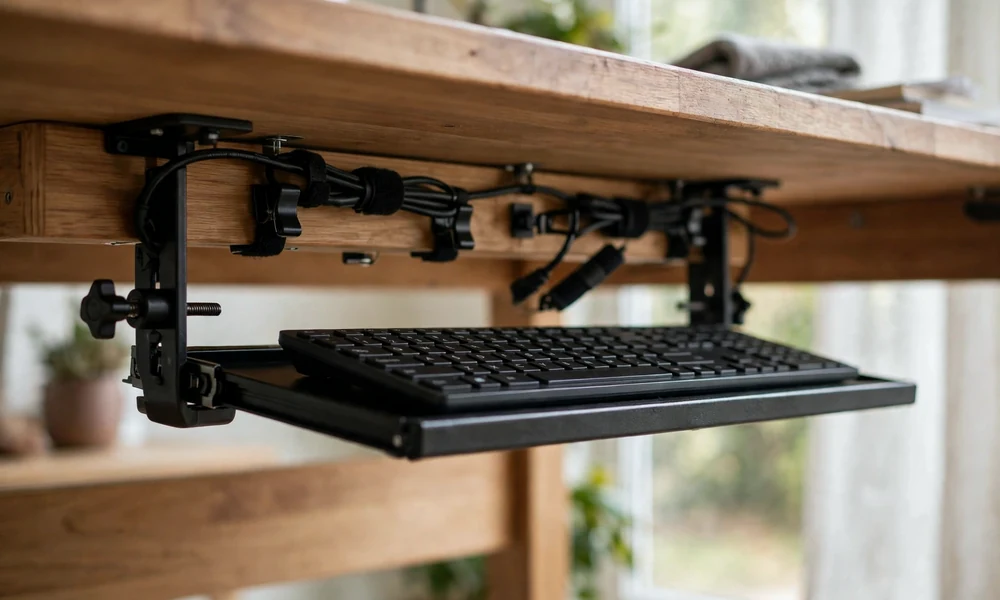
Knee clearance is the number people measure last and regret first. When the tray is pushed in, the keyboard sits under the desktop, and your knees need to pass beneath it. Sit at the desk, slide your chair in, and measure the gap between your knees and the underside of the desktop. If the tray plus the keyboard leaves less than a few centimetres, your knees will bump it every time you move, and you will end up pushing the chair back and hunching forward, which defeats the ergonomic purpose entirely.
Comfort, Wrist Rests, and Mouse Space
A tray is only comfortable if the keyboard and the mouse share it well. The mouse deserves as much thought as the keyboard, because a mouse squeezed onto a narrow strip beside the keyboard forces the shoulder into an awkward reach. If you use a mouse for hours a day, choose a tray at least 65 centimetres wide, or one with a separate swivelling mouse platform that can move to the side that suits your hand.
Your monitor position matters too, because a tray that lowers the keyboard while the screen stays high creates a new strain in the neck. The top of the screen should sit at or just below eye level, and the screen should be about an arm’s length away. If your screen sits on the desktop, a monitor arm can lift it to the right height, and our guide to the best monitor arms of 2026 explains how to choose one that holds your screen steady.
Installation and Everyday Use
Cable management is the difference between a tidy tray and a tangled one. A wired keyboard and mouse need enough slack to follow the tray in and out, so leave a loose loop of cable under the desk rather than pulling the cables tight. Cable clips under the desktop keep the loop from dropping onto your knees, and a wireless keyboard and mouse remove the problem entirely. If cables are a constant battle on your desk, our guide to the best desk organizers of 2026 covers trays, boxes, and clips that keep the rest of the desktop tidy too.
Before You Buy: A Short Checklist
- Measure your keyboard and mouse together, and buy a tray at least 65 centimetres wide for a full-size set.
- Measure the clear space under your desk, including the depth, the width, and the height above your knees.
- Check whether your desk can be drilled, clamped, or neither, and choose the mounting type to match.
- Look for ball-bearing slides rated for at least 10 kilograms, with a lock in the out position.
- Choose a tray with tilt adjustment, ideally a negative tilt, if your wrists already ache.
- Test the tray empty first, pulling it in and out a dozen times before you load the keyboard onto it.
- Check that your monitor height still works with the lower keyboard, and raise the screen if needed.
Frequently Asked Questions
Are keyboard trays good for your wrists? Yes, when they are set at the right height, because they let your forearms rest level and keep your wrists straight. A tray mounted too high or with an upward tilt can make wrist pain worse, so height and tilt matter more than the tray itself.
What size keyboard tray do I need? A full-size keyboard plus a mouse needs a tray at least 65 centimetres wide, and 75 to 80 centimetres is more comfortable. A compact keyboard can fit on a 55-centimetre tray, but measure the keyboard and mouse together rather than guessing.
Can I install a keyboard tray without drilling? Yes, a clamp-on tray grips the edge of the desktop and needs no screws, which suits renters and glass desks. Check the clamp range against your desktop thickness, and make sure the edge is strong enough to hold the clamps firmly.
Should a keyboard tray tilt down or stay flat? A slight downward tilt, away from you, is the position most ergonomists recommend, because it keeps the wrists straight. A flat tray is fine if your wrists are comfortable, while an upward tilt should generally be avoided.
The Bottom Line
The best keyboard tray of 2026 is the one that fits your desk, your keyboard, and your body, and then quietly disappears into the background. It is wide enough for the keyboard and the mouse, low enough to keep your forearms level, smooth enough to slide in and out without thinking, and steady enough that you never notice it while you type.
Start with the tape measure, not the catalogue. Measure the keyboard and the mouse, the space under the desk, and the height of your elbows when seated, then choose the type that fits: a sliding tray for a fixed desk, a tilting tray for aching wrists, a clamp-on tray for a desk you cannot drill, or a wide tray for a full-size setup.


