
What Is a Trackpad, and Which External Trackpads Are Worth Buying in 2026?
The best trackpads in 2026 let you control a whole computer with the flat of your hand. A trackpad is a touch-sensitive surface that turns finger movement into cursor movement, and taps, swipes and pinches into commands. You already know the one built into your laptop. An external trackpad is the same idea, freed from the laptop: a larger slab beside your keyboard that gives a desktop the gestures a laptop user takes for granted.
Trackpads divide opinion. Some try one for an afternoon, miss the familiar shape of a mouse, and go straight back. Others switch and never return, because scrolling with two fingers and swiping between desktops with three feels faster than a scroll wheel. The difference is usually the trackpad itself: a small, rough, laggy surface puts anyone off, while a large, smooth one quietly changes how you work.
Key Takeaways
- Size decides comfort: a trackpad around 13 to 15 centimetres wide gives your fingers room to glide without running off the edge.
- Glass beats plastic: a smooth glass surface stays consistent for years, while cheap plastic turns sticky.
- Gestures are the point: two-finger scroll, three-finger swipe and pinch-to-zoom make a trackpad faster than a mouse for everyday work.
- A trackpad is not a mouse: it replaces pointing with touch, so judge it on glide and gesture accuracy, not buttons and scroll wheels.
- Connection matters: Bluetooth suits tidy desks, while a wired USB connection suits anyone who hates charging.
What a Trackpad Actually Is
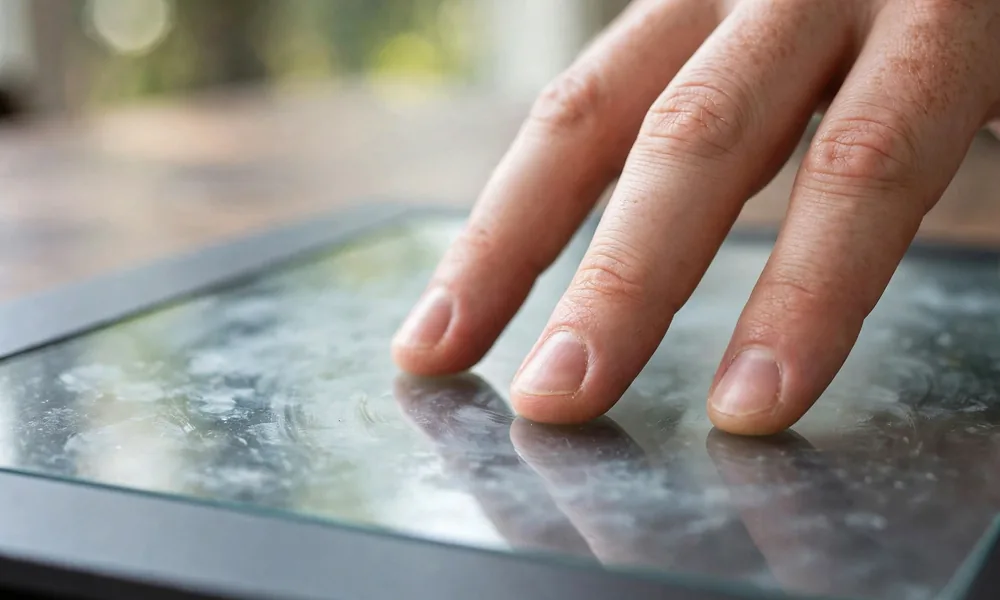
A trackpad is a flat, touch-sensitive panel that tracks your fingers and translates their movement into movement on screen. Slide one finger and the cursor follows. Tap and it clicks. Rest two fingers on the surface and slide, and the page scrolls. Spread two fingers apart and the view zooms in. The surface itself does not move: there are no wheels or balls, and no sensor staring at your desk. Your fingers are the moving part.
Most trackpads use capacitive sensing, the same principle as a phone screen: electrodes under the surface detect the charge of your fingertips. Better ones sample many times a second, so the cursor follows without lag. Cheaper ones sample less often, and the cursor feels as if it is catching up.
The trackpad built into your laptop is a compromise, usually around 10 to 12 centimetres wide because it must fit beside the keyboard. An external trackpad has no such limit: it can be wider and taller, with more room for gestures, and sit exactly where your hand naturally rests.
Trackpad Versus Mouse: The Honest Distinction
A trackpad and a mouse solve the same problem in opposite ways. A mouse is a pointer device: you grip it, move it across the desk, and it reports that movement. It has physical buttons and usually a scroll wheel, and suits precise work such as photo editing, gaming and CAD. A trackpad is a touch surface: your fingers stay in one place and glide, tap and swipe. It suits navigation, scrolling and switching between apps.
Neither is better in every situation. A mouse wins when you click the same tiny target hundreds of times a day, because a physical button gives feedback a tap cannot match. A trackpad wins for reading, writing and browsing, because gestures replace a chain of small mouse movements with one swipe. Many people use both. If wrist pain shapes your decision, our guide to ergonomic mice that end wrist pain covers the mouse side of that choice.
The Types of Trackpad You Can Buy
Glass trackpads
Glass is the surface to look for first. It feels cool and slick, resists scratches, and a quick wipe restores it. Almost every trackpad people love is glass. The downside is price: glass trackpads sit at the top of the range, but for hours of daily use, the difference is worth it.
Plastic trackpads
Plastic trackpads are cheaper and lighter, and common on budget models. New, a good plastic surface feels almost as smooth as glass. With use, though, the centre goes glossy, the glide turns uneven, and in summer it can feel sticky. Plastic is fine for occasional use, but not for your main machine.
Haptic trackpads
A haptic trackpad has no moving click mechanism. Press down and a small motor taps back, faking the feel of a click. Because nothing moves, the whole surface clicks evenly, right into the corners, and there is nothing to wear out. Haptic models cost the most, but are the most satisfying to use daily.
Built-in versus external
A built-in trackpad comes with your laptop. An external trackpad is a standalone slab, connected by Bluetooth or USB, that works with a laptop, a desktop or a tablet. It makes most sense for a desktop, for a docked laptop whose built-in pad is out of reach, or when your built-in pad is too small for all-day use.
What to Judge Before You Buy
Size and shape
Measure your desk, then choose the largest trackpad that fits it. A surface around 13 to 15 centimetres wide and 9 to 11 tall suits most hands: wide enough for a three-finger swipe without your fingers sliding off the edge.
Surface feel
It should feel slick and even, with the same resistance from edge to edge. Dry patches and a sticky centre are signs of a cheap surface. If you buy online, read reviews for the words “glide” and “friction”: a rough surface will be mentioned within the first few reviews.
Gesture support
Gestures are the reason to own a trackpad, so check which ones a model supports: two-finger scroll, two-finger tap for a right-click, three-finger swipe to switch desktops, and pinch to zoom. Better models add four-finger gestures. Support depends on your operating system as much as the hardware: a trackpad built for one system may offer only basic pointing on another.
Click and pressure
Some trackpads click with a physical hinge, some use haptics, and some expect you to tap instead. A hinged click feels familiar but gets stiff near the top edge. A haptic click feels even everywhere. Make sure the click force or tap sensitivity can be tuned: a trackpad that clicks when you merely rest your fingers on it will drive you mad within a week.
Connection and battery
Bluetooth trackpads keep your desk cable-free but need charging every few weeks. Wired USB trackpads never need charging and never lag, but they add a cable. Some models offer both. Check the battery claim, then halve it: real use always drains a battery faster than the box promises.

Palm rejection
Palm rejection is the trackpad’s ability to ignore the heel of your hand while it tracks your fingertips. Bad palm rejection causes the classic complaint: the cursor jumping across the screen while you type. Good trackpads distinguish a resting palm from an active finger by size and pressure, and ignore the palm completely.
Trackpads Compared: What Matters Most
| Feature | Budget plastic | Mid-range glass | Premium haptic glass |
|---|---|---|---|
| Surface | Plastic, wears shiny | Smooth glass | Smooth glass |
| Click | Hinged, stiff at top | Hinged or tap | Haptic, even everywhere |
| Gestures | Basic scroll and tap | Two- and three-finger | Full set, customisable |
| Connection | Usually wired USB | Bluetooth or USB | Bluetooth and USB |
| Best for | Occasional use | Everyday desk work | All-day professional use |
The pattern is simple: you pay for the surface, the click and the gestures. A budget trackpad is fair for a second desk, but if a trackpad will be your main device, the mid-range glass models are where the value sits.
Who Should Buy a Trackpad, and Who Should Skip One
A trackpad suits you if your day is mostly reading, writing, email and browsing. Writers and office workers tend to love them, because gestures make navigation feel like part of the work. They also suit small desks, because a trackpad lies flat and needs no room to roam, unlike a mouse.
A trackpad suits you less if your work is precise pointing all day. Photo retouchers, video editors, CAD users and gamers usually keep a mouse, because a physical button and a wheel give finer control than a tap and a swipe. The sensible answer is often both devices on the desk. Your keyboard matters too: a trackpad sits naturally beside a compact keyboard, and our guide to the best keyboards of 2026 covers the layouts that leave room for one.
Setting Up an External Trackpad
Setup takes about five minutes. Place the trackpad where your dominant hand rests naturally, usually to the right of the keyboard, with its front edge roughly level with the keyboard’s. If you use a laptop, put the trackpad beside it rather than in front of it: reaching across the laptop is uncomfortable within an hour.
Then open your system settings and tune three things. First, set the tracking speed so one relaxed finger movement crosses the screen. Second, turn on tap-to-click if you like it, and set the sensitivity to firm so resting fingers do not click by accident. Third, learn the gestures one at a time: two-finger scroll on day one, three-finger swipe on day two, pinch-to-zoom when the first two feel automatic. Most people who give up do so in the first week. Give it a full working week.

Trackpad Buying Checklist
- Measure your desk space first: choose the largest trackpad that fits without crowding your keyboard.
- Pick glass over plastic if this will be your main pointing device for hours a day.
- Check gesture support for your operating system before you buy, not after it arrives.
- Test the click: haptic is even everywhere, hinged is stiff at the top, and tap-to-click must be adjustable.
- Confirm the connection: Bluetooth for a tidy desk, USB for zero lag and no charging.
- Give it a week: gestures feel strange on day one and automatic by day seven, so do not judge it on the first afternoon.
Frequently Asked Questions
Are external trackpads better than a laptop’s built-in trackpad?
Usually, yes, because they are bigger: an external one can be 13 to 15 centimetres wide with room for full gestures, while a built-in pad is squeezed beside the keyboard. The built-in pad wins on convenience, but the external pad is more comfortable for all-day desk work.
Can a trackpad replace a mouse completely?
For everyday work, yes: reading, writing and browsing are all faster with gestures. For precise work such as photo editing, CAD or gaming, most people keep a mouse as well.
Do trackpads work with Windows as well as Mac?
Most do, but gesture support varies, so check the manufacturer’s compatibility list for your operating system before buying.
Why does my cursor jump while I type?
That is poor palm rejection: the trackpad is reading the heel of your hand as a finger. Turn palm rejection on, raise your wrists slightly, or move the trackpad further from the keyboard.
How do I clean a trackpad?
Wipe it with a slightly damp, lint-free cloth, then dry it. Do not use window cleaner or abrasive cloths, which damage the coating. Clean it weekly: skin oil builds up invisibly and ruins the glide.
Is a haptic trackpad worth the extra money?
If you use a trackpad all day, yes: the click feels the same everywhere, there is no hinge to wear out, and you can adjust its firmness. For occasional use, a mid-range glass trackpad is close enough and costs far less.
Bottom Line
The best trackpads in 2026 are the ones you forget you are using: a large, smooth glass surface, gestures that work first time, and a click that feels the same wherever your finger lands. Buy glass if this is your main device, check gesture support before you pay, and give the gestures a full working week. And if you pair it with a machine that deserves it, our guide to the best laptops of 2026 is the place to start.


