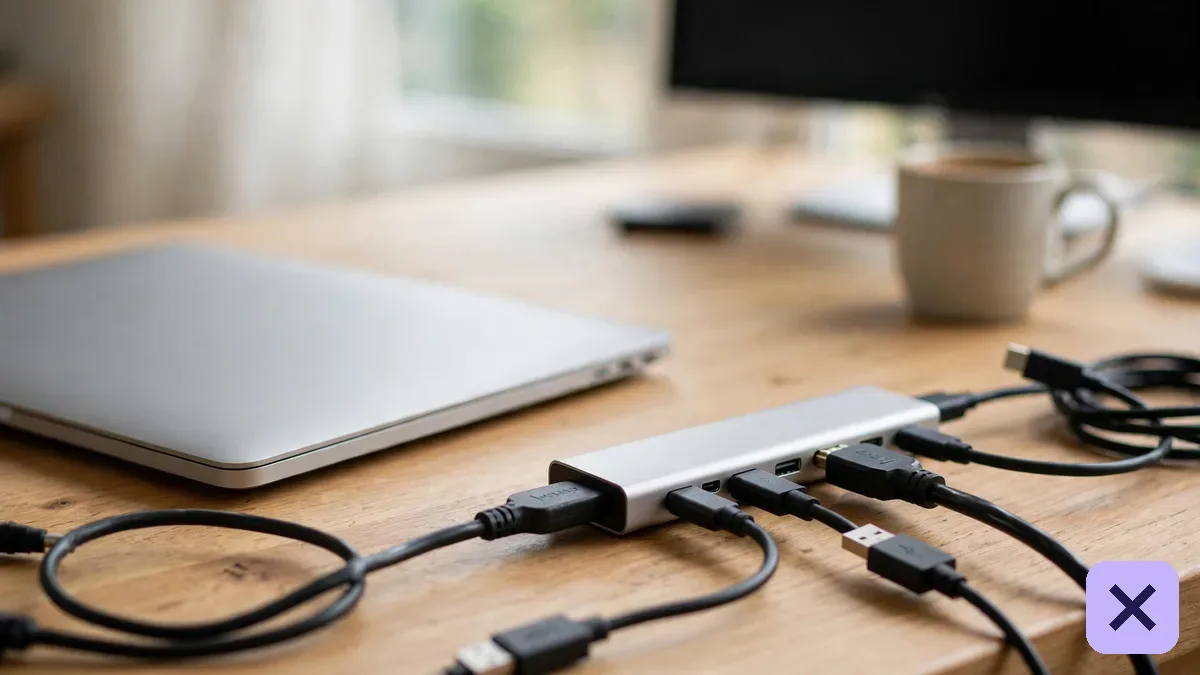
The best USB hubs in 2026 are the ones you forget about, because everything plugged into them simply works. A modern laptop often ships with two USB-C ports and nothing else, which means a monitor, a keyboard, a mouse, an external drive, and a phone charger are all queuing for the same two sockets. The right hub ends that shortage in one move, turning a single port into a proper workspace. The wrong hub does the opposite: it drops your drive halfway through a transfer, makes your mouse stutter, charges your phone at a crawl, and runs hot enough to make you nervous. This guide explains how USB hubs really work, which types suit which desk, and how to pick one that will still be earning its place in two years.
Key Takeaways
- A hub is only as fast as its slowest link, so match the hub to your laptop port: a 10 Gbps hub plugged into a 5 Gbps port gains you nothing.
- Powered hubs beat unpowered ones the moment you connect a hard drive, because spinning drives and fast SSDs need more power than a laptop port shares out.
- More ports are not better if they all share one slow connection, so count your real devices and leave one spare port for the thing you add next month.
- USB-C hubs with pass-through charging keep a laptop powered while everything else runs, which is the single most useful feature for a one-cable desk.
- Heat is a warning sign, not a quirk: a hub that runs hot under normal use is cutting corners on its chips or its case.
How USB Hubs Work, in Plain Terms
Every USB hub connects to your computer through one upstream port and shares that connection among its downstream ports. Think of it as a road: a USB 3.2 Gen 2 connection is a ten-lane road, and every device plugged into the hub drives on it at the same time. A keyboard and a mouse barely use a lane each, so they never cause a jam. An external SSD copying a large video file uses most of the road, and if a second drive joins in, both slow down. That is normal and expected. The problem starts when the road itself is narrower than the hub promises, which is how bargain hubs get away with printing impressive numbers on the box while delivering a fraction of them in real use.
USB-C, USB-A, and the Speed Labels That Mislead
The letters and numbers on hub boxes are confusing by design, so here is the short version. USB-A is the familiar rectangular plug, and USB-C is the small oval one that fits either way up. Either shape can be fast or slow; the shape tells you about the plug, not the speed. The speed is in the standard: USB 3.2 Gen 1 runs at 5 Gbps, Gen 2 at 10 Gbps, and Gen 2×2 at 20 Gbps, while USB4 starts at 20 Gbps and can reach 40 Gbps. Most people need 10 Gbps, which handles a fast SSD, a 4K monitor signal, and everyday peripherals all at once without breaking a sweat. Paying for 20 or 40 Gbps only makes sense if you regularly move very large files to a very fast drive and your laptop port supports the same speed.
The Three Kinds of Hub Worth Buying
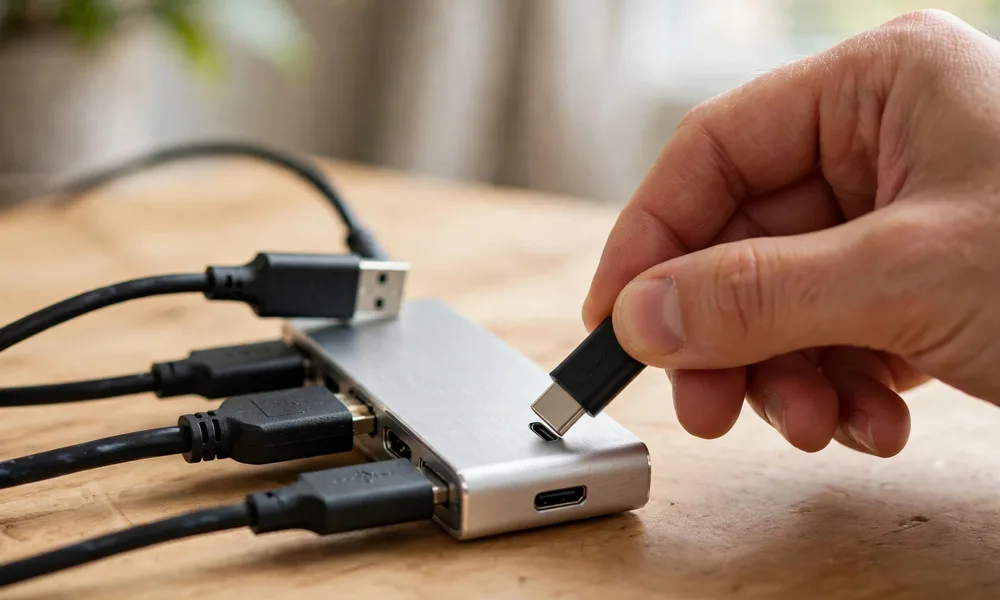
Hubs fall into three useful groups, and most people only need one of them. Choosing the group first makes the rest of the decision easy, because each group is built for a different kind of desk and a different kind of day.
1. Slim travel hubs
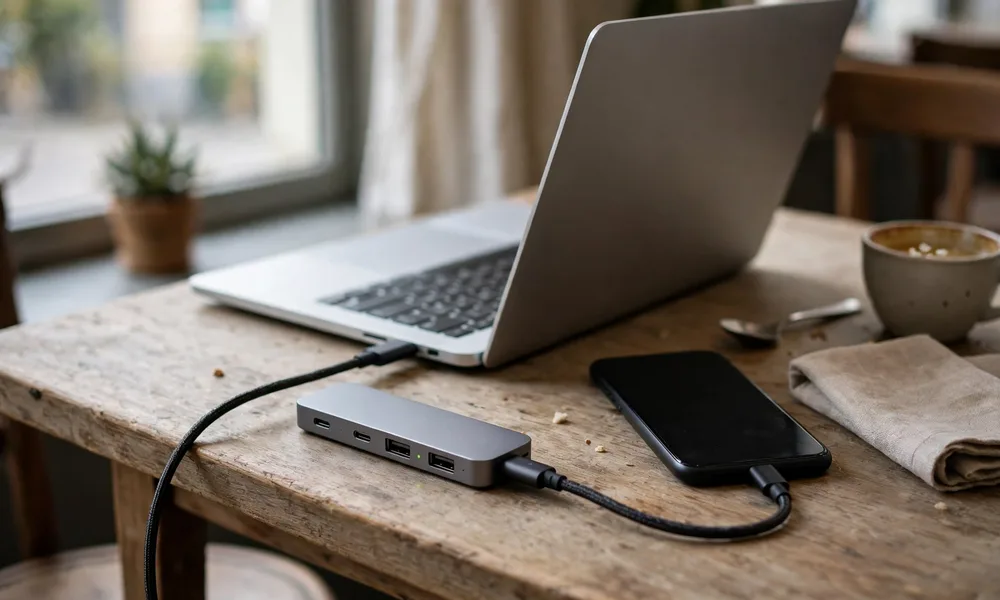
A travel hub is small, light, and bus-powered, built to live in a laptop sleeve. It typically offers two or three USB-A ports, an HDMI output, a memory card reader, and USB-C pass-through charging. It is the right choice if you work from cafes, hot desks, and trains, and you need to plug into a projector or a borrowed monitor once in a while. Its limits are honest ones: it cannot power a hard drive reliably, it gets warm when everything is plugged in, and its ports sit close together, so chunky flash drives can block their neighbours.
2. Powered desktop hubs
A powered desktop hub sits on your desk, plugs into the wall, and stays put. It usually offers seven or more ports, including fast USB-C and USB-A, and it can run a hard drive, charge a phone at full speed, and keep a keyboard, mouse, and audio interface connected all at once without a hiccup. This is the hub for a home office where the same devices are connected every day. Look for a metal case, because it sheds heat far better than plastic, and for ports spaced widely enough that two chunky drives can sit side by side.
3. USB-C docking hubs
A USB-C docking hub sits between a simple hub and a full docking station. It connects with one cable and adds an HDMI or DisplayPort output, an Ethernet port, and laptop charging, alongside its USB ports. It suits anyone whose desk has a monitor and a wired network connection, and who wants to sit down, plug in one cable, and be working. If your setup needs a monitor output and laptop charging through one cable, a docking station may suit you better, and our head-to-head on the best and worst docking stations shows which ones deliver and which ones disappoint.
Comparison Table: Which Hub Fits Your Desk
| Hub type | Best for | Ports | Power | Watch out for |
|---|---|---|---|---|
| Slim travel hub | Cafes, hot desks, travel | 4 to 6 | Bus-powered | Weak with hard drives |
| Powered desktop hub | Home office, many devices | 7 to 10 | Mains-powered | Takes up desk space |
| USB-C docking hub | One-cable monitor desk | 6 to 9 plus video | Pass-through charging | Check the charging wattage |
| High-speed 10 Gbps hub | Video editing, big files | 4 to 7 | Powered preferred | Needs a 10 Gbps laptop port |
| Budget multi-port hub | Keyboard, mouse, printer only | 4 to 7 | Bus-powered | Shared slow connection |
What to Check Before You Buy
Start by counting your devices honestly. Write down everything you plug in on a normal day: monitor, keyboard, mouse, headphones, hard drive, phone charger, card reader, printer. Then add one spare, because there is always one more device coming. A hub with exactly enough ports is a hub you will outgrow in a month, and a hub with two ports to spare is a hub that stays useful for years. Pay attention to the mix as well: two USB-C ports are worth more than four extra USB-A ports if your newest devices all use USB-C.
Common Mistakes That Waste Money
The most common mistake is buying on port count alone. A seven-port hub that shares a single 5 Gbps link is slower for real work than a four-port hub with a proper 10 Gbps connection, and the seven-port box will look like the better deal right up until you copy a large file. The second mistake is ignoring power: plugging a spinning hard drive into an unpowered hub and blaming the drive when it disconnects, when the hub was starving it all along. The third is buying a hub for a monitor setup without checking whether the hub carries a video signal at all, because many plain hubs have no video output, and no adapter will add one.
Setting Up Your Hub So It Just Works
Plug the hub into the fastest port on your laptop, which is usually the USB-C port nearest the hinge or the one marked with a small lightning or display symbol. Connect a powered hub to the wall before you plug in any drives, so the drives get clean power from the start. Put the devices that need speed on the fastest ports: the SSD first, then the card reader, then everything else. Keyboards, mice, and headphone dongles can live on any port, including the slowest ones. A well-placed hub also helps the rest of the desk: a laptop raised on a stand runs cooler and sits at a better height, and our guide to the best and worst laptop stands covers the stands that actually hold a laptop steady.

Checklist: Buying the Right USB Hub
- Count every device you plug in daily, then add one spare port for the next device.
- Match the hub speed to your laptop port: 10 Gbps is the sweet spot for most people.
- Choose a powered hub if you connect a hard drive, an SSD, or more than four devices.
- Check pass-through charging wattage against your laptop’s charger before buying a docking hub.
- Pick a metal case with a detachable cable and ports spaced widely enough for chunky drives.
- Test it on arrival with a large file copy to a fast drive, and return it if the speed falls far short of the box.
Frequently Asked Questions
Do USB hubs slow down transfer speeds?
Yes, a little, because several devices share one connection, but a good 10 Gbps hub slows a fast SSD only slightly in normal use. The slowdown becomes obvious only when two fast devices transfer large files at the same time, or when the hub itself is slower than the laptop port it is plugged into.
Can a USB hub damage my laptop?
A well-made hub from a reputable maker will not damage your laptop, and good hubs include protection against power surges and short circuits. The risk comes from very cheap unbranded hubs with poor power regulation, which can send unstable power back through the port, so stick to known makers.
Why does my external drive keep disconnecting from my hub?
Almost always, it is a power problem. An unpowered hub cannot give a spinning drive the steady current it needs, especially when a phone or another device is charging at the same time. Move the drive to a powered hub, or plug it directly into the laptop, and the disconnects usually stop at once.
Do I need a USB4 or Thunderbolt hub?
Only if your laptop supports it and you regularly move very large files or drive a high-resolution monitor at high refresh rates. For most desks, a 10 Gbps USB-C hub does the same everyday job for far less money, so check your laptop’s port specification first.
Can I use a USB hub with a monitor?
Only if the hub has a video output such as HDMI or DisplayPort, or your monitor connects over USB-C with DisplayPort Alt Mode. A plain hub with only USB-A ports cannot carry a video signal, so check the hub’s specifications for video support before buying.
Is it safe to leave a powered hub switched on all the time?
Yes, powered hubs are designed to stay on, and they draw very little power when idle. If you want to save energy or spin down a drive overnight, use the hub’s per-port switches if it has them, or switch the hub off at the wall.
The Bottom Line
The best USB hub is the one that matches your desk rather than the one with the most ports on the box. Travellers should buy a slim, well-built hub with pass-through charging and a card reader. Home offices should buy a powered metal hub with room to grow, and anyone with a monitor should check video and charging wattage before anything else. Count your devices, match the speed to your laptop, and test the hub with a real file copy on the day it arrives. Get those three things right and the port shortage disappears. If your desk also needs a better camera for calls, our look at the best and worst webcams will help you pick one that is actually sharp in a dim room.


