Cable Management That Tames the Tangle in 2026
Good cable management is not about buying a box and hoping the mess disappears. It is about giving every cord a planned route from its plug to its device, so cables stop snagging, connectors stop bending, and the floor under your desk stops looking like a nest.
The mistake most people make is starting with the shopping: they buy clips and trays before they know where their cables go. This guide takes the other order: map first, route second, buy last.
Key Takeaways
- Map before you buy: count every cable, trace its route, then choose the clips, trays, or sleeves that fit.
- Give every cable a fixed route with slack at both ends, so a moved monitor never yanks a connector loose.
- Hide the power strip and its bricks in one place, with air around them, and never bury a strip that feels warm.
- Separate the cables you touch daily from the ones you never move, and manage each group differently.
- Check the routes every few months; a maintainable system beats a perfect-looking one.

Why the Tangle Keeps Coming Back
A modern home accumulates cables quietly. A monitor brings a power cord and a video cable, a laptop adds a charger, and then come a phone charger, a headset, a keyboard, a desk lamp, and a speaker. None of them is a problem alone. Together they form a mat under the desk that collects dust, catches feet, and turns moving a monitor into a ten-minute untangling job.
Tangled cables are more than untidy. A cable pulled tight at its connector frays faster, and a frayed charger can fail without warning or get hot. Cables on the floor are a trip hazard, and the first thing a chair wheel attacks. Tangles also return because cables move: a laptop leaves and comes back, a charger migrates to the sofa. A good system expects that, giving daily cables a home they return to and fixed cables a route that never needs touching.
Start With a Map, Not a Shopping List
Before you buy anything, unplug everything at the desk and lay the cables out where you can see them. Count them, including the ones behind the monitor you forgot about. Most home desks have six to ten cables, and a gaming desk can have twelve or more. Add two spare slots, because a new device always arrives sooner than expected. Then sort the cables into three piles: daily use, never move, and unidentified. The third pile should leave the desk entirely.
Next, trace the route each remaining cable needs. Monitor cables run from the back of the screen down to the desk and then to the wall; charging cables run from the strip up to the desk edge where your hand can reach them. When you can see the routes, the shopping list writes itself: clips where a cable must stay within reach, a tray or box for the strip, and a sleeve only where several cables genuinely share one route.
The Five Zones of a Tidy Home
Cable management is not one job; it is five small ones, one per zone, and each zone has its own rules.
The desk is the busiest zone, and the only one where cables move every day. Here the goal is access, not invisibility: daily chargers should sit in clips at the desk edge, and fixed cables should drop behind the desk into a tray.
The television wall is where cables are most visible, because the screen hangs on a wall and every cord shows. Run cables straight down behind the screen to a low console, using a raceway channel if the television is wall-mounted.
The bedside is the smallest zone and the easiest to get wrong. Two phone chargers, a lamp, and perhaps a clock share one small table, and the cables slide off the back every night. One clip at the back edge of the table, holding both charging cables, solves almost the whole problem.
The kitchen counter is the zone with the most heat and water, so it needs the most caution. Cords should be short, coiled, and kept away from the hob and the sink. Appliances you use weekly belong in a cupboard with their cords wrapped, not permanently plugged in.
The entryway charging station is the zone that saves the other four. One shelf near the door, with a strip and a clip for each family member’s charger, stops chargers migrating around the house.
Route Design: Six Rules That Do the Work
First, run cables along edges and corners, never across open floor or desk space. A cable that follows the back edge of a desk is invisible and safe; one that cuts diagonally across the desktop is in the way of everything. Second, keep power and data apart where you can: a thick power cable pressed against a video cable for its whole length is still asking for interference.
Third, leave slack at both ends of every cable. A gentle loop near the device and another near the plug means a moved monitor never yanks a connector. Fourth, bundle only cables that share a route and rarely change: the monitor power and video cables, the speaker lead, and the lamp cord down the same desk leg are a good bundle. The phone charger you unplug daily is not.
Fifth, support heavy cables: a thick laptop charger should rest in a tray or on a clip rated for its weight, not hang from its own connector. Sixth, label both ends of anything you cannot identify at a glance. On a standing desk, give moving cables extra slack and test the full range of height first.
Power Bricks and the Strip
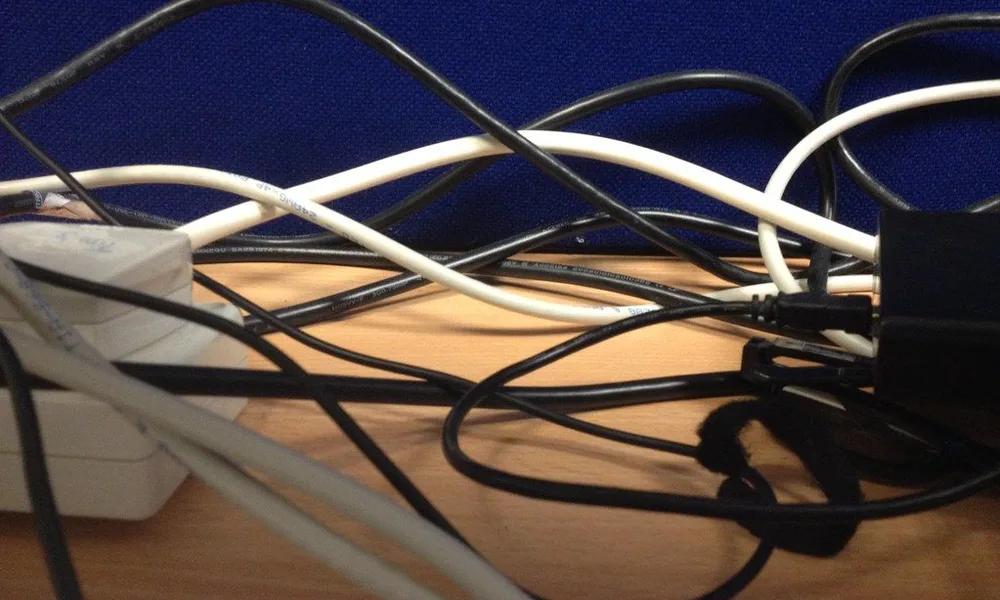
The ugliest part of any setup is not the cables; it is the power strip with six plugs and three bulky adapters. A cable management box is the simplest answer: a lidded box that holds the strip and its plugs inside, with slots at each end for the cables you need. Choose one large enough for the strip plus two or three chunky adapters, and check the ventilation, because a sealed box around warm adapters traps heat.
An under-desk tray does the same job and keeps the strip off the floor, which is better in a room with pets or small children. Whatever you hide the strip in, keep it accessible: you need to reach the switch without moving furniture. Never plug one strip into another, never run a strip under a rug, and if a strip feels hot, unplug it and find out why. Our guide to power strips that protect your gear explains the difference between a plain strip and a surge-protected one.
Safety: The Part Nobody Should Skip
Start with the cables themselves. Any cable with a cracked case, exposed wire, or a wobbling connector should be replaced, not tidied. A damaged cable hidden inside a sleeve is still damaged. Check the cables you use most often every few months, especially phone chargers, which bend at the same spot every day.
Heat is the second thing to watch. Power bricks get warm in normal use and need air around them. Do not wrap a brick in a sleeve, stack bricks on top of each other, or put a box of adapters against a radiator. If you use a cable management box, make sure it has ventilation slots and do not overload the strip inside it.
Children and pets change the rules. Cables at floor level are chewed, pulled, and tripped over, so get every cable off the floor and out of reach. A tray under the desk beats a box on the floor, and a raceway on the wall beats both. Keep charging cables short at the bedside, and never leave one dangling where a small child can reach it.
Four Desk Setups That Actually Work
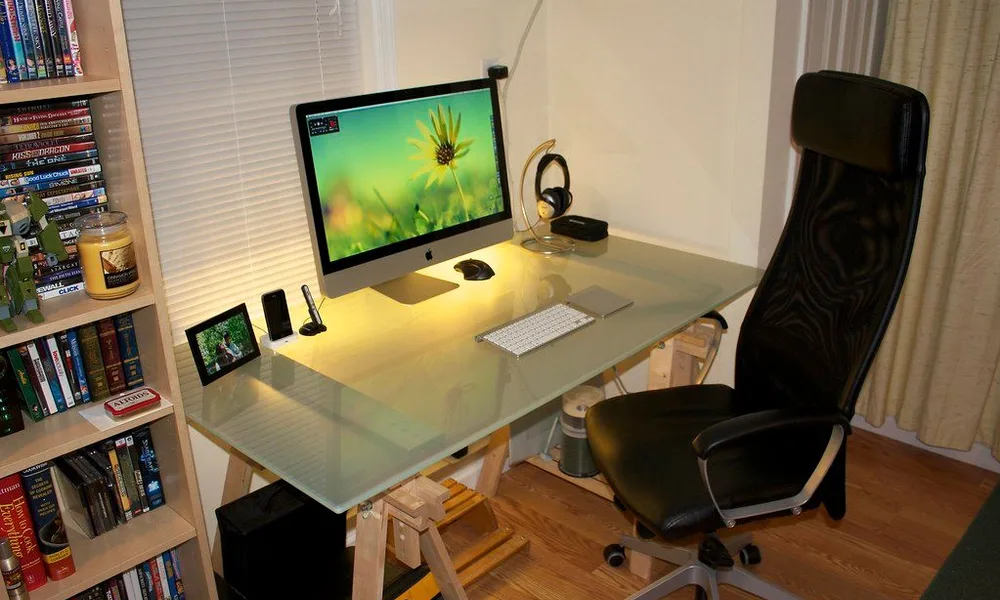
The home office desk is the classic case: a monitor, a laptop, a phone charger, and a lamp. The winning layout is a tray under the desk holding the strip, clips along the back edge for the two daily chargers, and a sleeve down one desk leg for the monitor cables.
The gaming desk is the hardest, with a dozen cables and a computer that gets opened and upgraded. Keep the fixed cables in a tray and the rest accessible, not sealed away. Use Velcro ties instead of zip ties, because you will open the bundle again, and leave extra slack for the next upgrade.
The television setup is a different shape of problem: a wall of cables behind a console, with a television, a streaming box, a console, and speakers. The fix is a short raceway behind the console and a single strip inside it, with each cable labelled at the strip end.
The bedroom charging station is the simplest setup of all, and the one most people skip. A small shelf with a strip and two clips, placed where you can reach it from bed, keeps chargers off the floor and off the bedside table.
Cable Management Approaches Compared
| Approach | Best For | Effort | Weakness |
|---|---|---|---|
| Route and hide (tray or box) | Fixed desks, full setups | An afternoon | Hard to change quickly |
| Bundle and sleeve | Cables sharing one route | Under an hour | Awkward to swap one cable |
| Clip as you go | Daily chargers, rented desks | Minutes | Cannot hold heavy cables |
| Go wireless, cut the count | Keyboards, mice, charging | Replacing devices | Costs more, needs charging |
| Label and coil the spares | Drawers, travel kits | Ten minutes | Only works if you keep it up |
Checklist: Before You Buy Anything
- Count every cable at the desk, then add two spare slots for the next device.
- Sort cables into daily use, never move, and unidentified, and remove the last pile from the desk.
- Trace each cable’s route, from plug to device, before choosing any product.
- Measure the power strip and the thickest adapter before choosing a box or tray.
- Check the desk material: screws suit solid wood, clamps suit thin tops, and adhesive suits only light clips.
- Plan for movement: leave slack at both ends.
Frequently Asked Questions
What is the difference between cable management and a cable organizer?
A cable organizer is a product, like a tray, a box, or a sleeve. Cable management is the whole system: the plan, the routes, the zones, and the safety rules the products serve. Our guide to cable organizers that tame the tangle covers the products themselves.
How many cables is too many for one desk?
There is no fixed number, but most home desks settle at six to ten, and a gaming desk can reach twelve or more. The count matters less than the routes.
Are cable management boxes safe?
Yes, when used sensibly. Choose a box with ventilation slots, do not overload the strip inside it, and keep the box accessible so you can reach the switch. Never hide a strip that feels hot.
How do I stop cables falling behind my desk?
Adhesive clips or a magnetic holder along the back edge of the desk will hold charging cables when they are unplugged. For heavier cables, route them through a tray or raceway so their weight is supported.
Can I manage cables on a rented or glass desk?
Yes. Use clamp-on trays, magnetic holders with weighted bases, and adhesive clips that peel off cleanly. Never drill into a desk you do not own, and test one clip for a week before buying a full set.
How often should I re-check my cable setup?
A quick check every few months is enough. Look for cables that slipped out of their clips, any cable that has gone tight, and any charger that feels hot or looks frayed.
The Bottom Line
Cable management works when the plan comes before the products. Map the zones, trace the routes, hide the strip with air around it, keep the daily chargers within reach, and leave slack everywhere a device might move.