
An ethernet switch is the quiet box that gives your home network more room to grow. If your router has four ports and you already own a television, a games console, a desktop computer, a printer and a streaming box, you have run out of wired connections — and an ethernet switch is the fix. It plugs into one port on your router and turns it into five, eight, sixteen or twenty-four, giving every device a fast, stable wired link. In 2026, switches are cheaper and faster than ever, with gigabit models costing less than a takeaway and 2.5-gigabit models finally within reach of ordinary homes.
This guide explains what an ethernet switch does, how to choose between the types on sale, and how many ports you actually need. Whether you are wiring a home office, a gaming corner, or a whole house, there is a switch here that fits.
Key Takeaways
- An ethernet switch adds wired ports to your network: plug one cable from the router into the switch, and every device connected to the switch joins the network.
- An unmanaged switch is the right choice for almost every home — plug it in and it works, with nothing to configure.
- Buy gigabit as a minimum in 2026; 2.5-gigabit ports are worth it only if your broadband plan and your devices can actually use the extra speed.
- Count the devices you need to wire today, then add at least two spare ports — networks always grow.
- Power over Ethernet (PoE) lets one cable carry both data and power to cameras and access points, but only if the switch itself supports it.
What an Ethernet Switch Does
A switch is a traffic controller for wired connections. Every device plugged into it gets its own dedicated link, and the switch learns which device sits on which port, forwarding each packet only to the port it needs. That is the difference between a switch and the old hubs it replaced: a hub shouted every packet at every device, while a switch delivers each one directly, so a busy network stays fast.
The switch connects back to your router through a single cable, called the uplink. All the traffic from the devices on the switch shares that one uplink, so the uplink speed sets the ceiling for the group. In practice that rarely matters at home, because most devices are idle most of the time, and the switch gives each device its full port speed when talking to another device on the same switch.
A switch does not replace your router. The router talks to the internet, hands out addresses, and runs your Wi-Fi; the switch simply extends its wired reach. If your Wi-Fi is the problem rather than a shortage of ports, the answer is different: our guide to the best Wi-Fi extenders of 2026 covers dead rooms, while our guide to the best routers of 2026 helps if the router itself is the bottleneck.
Unmanaged, Smart-Managed and Fully Managed
An unmanaged switch is a box with ports and a power lead, and nothing else to configure. You plug it in, connect your cables, and it works. There is no web interface, no password, and nothing to update. For a home, this is almost always the right choice, and it is also the cheapest: a five-port gigabit unmanaged switch is a small purchase.
A smart-managed switch adds a simple web interface with a handful of useful controls: you can see which ports are active, set up a separate network for guests or smart-home gadgets, and give priority to a work computer or a games console. It costs more and needs a little setup, but it suits a home office where work traffic should stay away from the children’s tablets.
A fully managed switch is business equipment: dozens of ports, a command-line interface, and features no home needs. It is louder, hotter, more expensive, and harder to set up. Unless you run a home lab or a small business from the house, skip it.
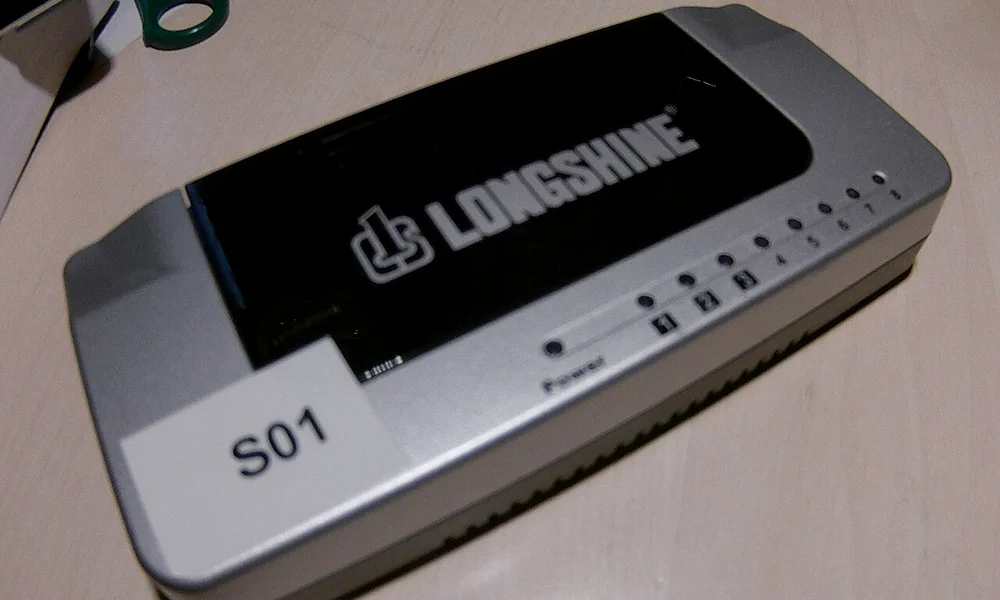
How Many Ports Do You Need
Count the wired devices in the room where the switch will live, then add two. A typical living room has a television, a games console, a streaming box and a soundbar — four devices — so a five-port switch leaves one spare, and an eight-port switch leaves room for a desktop computer or a network drive later.
Port counts come in standard sizes: 5, 8, 16 and 24. Five-port switches are small and cheap, and suit a single room. Eight-port switches are the sweet spot for most homes, still small enough to hide behind a television. Sixteen- and twenty-four-port switches are larger, usually metal, and often fan-cooled; they belong in a cupboard or a rack at the centre of a wired house, not on a desk.
Remember that one port on the switch is used by the uplink cable to the router, so a five-port switch gives you four ports for devices. If you need five devices wired, buy an eight-port switch. The price difference is small, and a spare port is always cheaper than a second switch later.
Speeds: Gigabit, 2.5-Gigabit and 10-Gigabit
Gigabit — one gigabit per second — is the standard for home switches in 2026, and it is enough for nearly everything a home does: 4K streaming uses about 25 megabits, a video call uses less than 10, and even a large game download is limited by your broadband plan long before a gigabit port. A gigabit switch is cheap, silent, and cool-running, and for most homes it is the right buy.
Two-and-a-half-gigabit switches are the sensible upgrade if your broadband plan is faster than a gigabit, or if you move large files between computers and a network drive. They cost noticeably more, and both ends of a connection need 2.5-gigabit ports to benefit — a 2.5-gigabit switch does nothing for a television with a 100-megabit port. Check your devices’ ports before paying for speed you cannot use.
Ten-gigabit switches are still enthusiast and small-business equipment in 2026: fast, hot, often fan-cooled, and expensive. They make sense for a video editor moving huge files to a network drive, or a home lab with a fast server. For everyone else they are money spent on speed that sits idle — and the right cable matters too, as our guide to ethernet cables explains.

Power over Ethernet, Fanless Design and Placement
Power over Ethernet, or PoE, lets a switch send power down the same cable that carries data. That matters for devices with no nearby socket: security cameras on a wall, a Wi-Fi access point on a ceiling, or a video doorbell by the front door. A PoE switch costs more, and the power budget matters — a switch rated for 60 watts total cannot run four 30-watt cameras — so add up what each device needs before buying.
Fanless switches are silent, which matters if the switch sits in a living room or a bedroom. Small unmanaged switches are almost always fanless, and many eight-port models are too. Larger switches, and most PoE models, have fans, and a cheap fan can whine. If the switch will live where people sleep or watch television, check for a fanless design or read a review that mentions noise.
Placement is simple but worth a minute of thought. Put the switch close to the devices it serves, where its cables can run neatly and its lights are visible — a blinking port light is the fastest diagnostic in home networking. Keep it ventilated: a switch in a closed cupboard with no airflow will run hot and fail early.
Comparison Table
| Switch type | Best for | Ports | Price |
|---|---|---|---|
| 5-port gigabit unmanaged | One room, a few devices | 5 | Lowest |
| 8-port gigabit unmanaged | Most homes | 8 | Low |
| 8-port smart-managed | Home offices, guest networks | 8 | Medium |
| 16/24-port gigabit | Whole-house wiring | 16–24 | Medium |
| 2.5-gigabit unmanaged | Fast broadband, large file transfers | 5–8 | Medium–high |
| PoE switch | Cameras, access points | 8–16 | High |
Setting Up Your Switch in Ten Minutes
Setup is genuinely simple. Plug the switch into power and put it where its cables will reach. Run one ethernet cable from any port on your router to any port on the switch — on an unmanaged switch, every port is equal. Then plug each device into a free port, and watch the lights: a lit port means a live connection, and a blinking light means traffic is flowing.
If a device does not connect, work through the chain in order. Check the cable is clicked in at both ends, try a different port, and try a different cable — cables fail more often than switches do. Restart the device, then the switch, then the router, in that order.
One cable deserves special care: the uplink between the router and the switch. If it is damaged or too long for its category, every device on the switch suffers at once. Swap the uplink cable first whenever the whole switch seems slow, since it is the cheapest part to test.

Checklist: Before You Buy an Ethernet Switch
- Count the devices to wire, add two spare ports, and remember the uplink uses one port itself.
- Choose unmanaged for a simple home setup; smart-managed only if you want guest networks or traffic priority.
- Buy gigabit as a minimum; pay for 2.5-gigabit only if your broadband plan and your devices can use it.
- Check the speed of each device’s own ethernet port — a 100-megabit television gains nothing from a faster switch.
- If you need cameras or ceiling access points, choose a PoE switch and add up its total power budget first.
- Prefer a fanless, metal-cased switch for a living room or bedroom, and keep it ventilated wherever it lives.
Frequently Asked Questions
Do I need a switch if my router has free ports?
No. A switch only adds ports you do not have. If your router has enough free ports for every wired device, a switch adds nothing — buy one when you run out of ports, not before.
Will a switch slow down my internet?
Not in any way you will notice. A switch adds a tiny delay, measured in microseconds, and each device keeps its full port speed. The only shared limit is the single uplink cable to the router, and home devices rarely fill it at the same time.
Can I connect one switch to another switch?
Yes. Plug a cable from any port on the first switch into any port on the second, and both work as one larger network. This is useful for wiring a second room without running a long cable back to the router.
What is the difference between a switch and a router?
A router connects your home to the internet and hands out addresses; a switch connects devices to each other inside your home. You need a router to get online, and a switch only when you need more wired ports than the router provides.
Do I need a managed switch for a home network?
Almost certainly not. An unmanaged switch does everything a typical home needs with no setup at all. A smart-managed switch is worth it only if you want separate networks for guests or smart-home gadgets, or priority for work traffic.
Can a switch power my security cameras?
Yes, if it is a PoE switch and the cameras support Power over Ethernet. Check the switch’s total power budget against the cameras’ needs, and remember that a non-PoE switch cannot power anything, whatever cable you use.
The Bottom Line
The best ethernet switch for most homes in 2026 is an eight-port gigabit unmanaged switch: cheap, silent, and ready in ten minutes, with enough ports for a room full of devices and a spare for whatever comes next. Pay for more speed or more features only when a specific device or a specific job demands it — and when that moment comes, you will know exactly which switch to buy.


