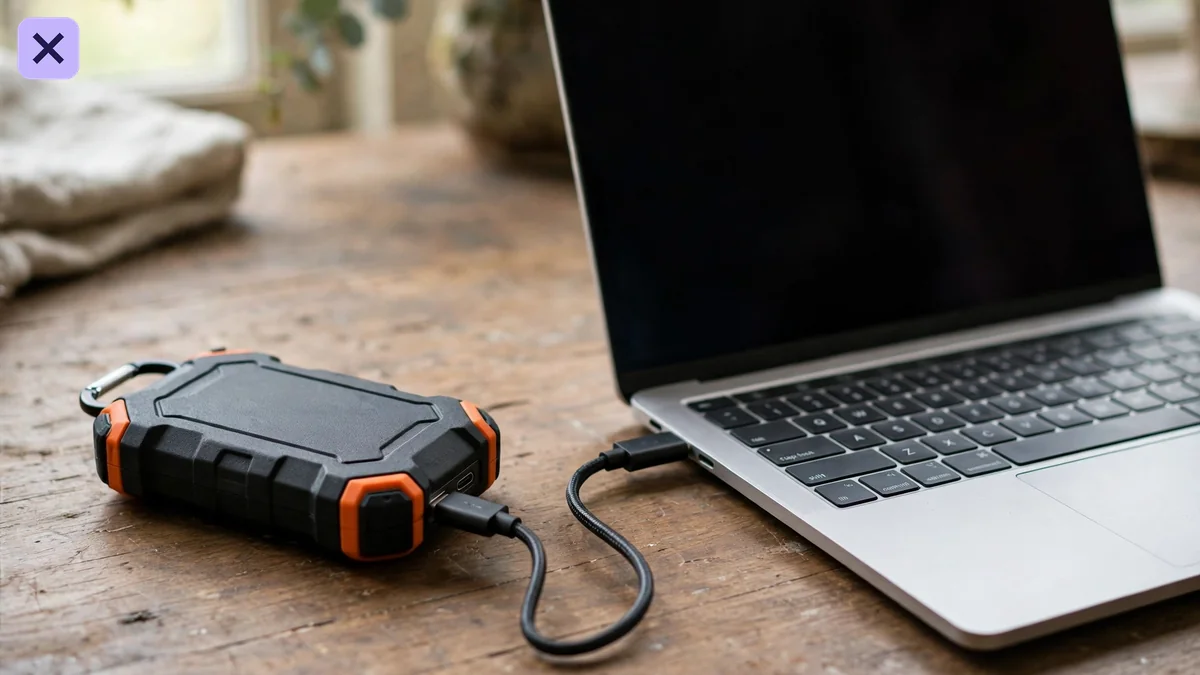
An external SSD is the single most useful accessory most laptop owners will ever buy. It turns a slow file transfer into a few seconds, it carries a photographer’s entire shoot in a pocket, and it gives a laptop with a full drive a second life without opening the case. In 2026 the best external SSDs are faster than ever, tougher than ever, and cheaper per terabyte than they have been at any point in the past, which makes this a good year to buy one — provided you pick the right speed, the right capacity and the right shape for how you actually use it.
This guide explains what matters and what does not: the speed standards that decide real transfer times, the capacity sizes that make sense for different jobs, and the difference between a slim drive built for a desk and a rugged one built for a backpack.
Key takeaways
- A modern external SSD transfers files 5 to 10 times faster than a spinning hard drive, and the gap grows with large video and photo files.
- USB 3.2 Gen 2 at 10 gigabits per second is enough for most people; USB4 and Thunderbolt only pay off for 4K video editing and huge daily transfers.
- Buy 1 terabyte as the minimum in 2026; 500 gigabyte drives fill up too fast once photo libraries and game installs are involved.
- Rugged drives cost little more than slim ones and are the safer choice for travel.
- Real-world speed depends on your computer’s port as much as the drive, so a fast drive on a slow port is wasted money.
Why an external SSD beats a hard drive
The comparison that matters most is the one between an external SSD and the external hard drive it replaces. A spinning hard drive tops out around 120 to 150 megabytes per second in real use, and it slows further when it has to find many small files scattered across the disc. A modern external SSD sustains 1,000 megabytes per second or more, and it handles small files without the seeking and spinning that make hard drives feel slow.
Durability is the second gap. A hard drive has a spinning disc and a read head floating microns above it, so a drop from a desk can kill it outright. An SSD has no moving parts, so the same drop is usually a non-event, and rugged models add rubber bumpers and sealed ports that shrug off rain and dust as well.

| Feature | External hard drive | External SSD |
|---|---|---|
| Typical real speed | 120 to 150 MB/s | 1,000 to 2,000 MB/s |
| 50 GB transfer time | About 7 minutes | Under 1 minute |
| Drop resistance | Poor, moving parts inside | Excellent, no moving parts |
| Size and weight | Larger, around 200 g | Pocket size, 30 to 60 g |
| Noise | Spinning and clicking | Silent |
| Cost per terabyte | Lower | Higher, but falling fast |
The hard drive still wins on one thing: cost per terabyte for cold storage. If you need 8 terabytes of files you rarely touch, a hard drive is far cheaper. But for anything you use weekly, for backups you actually run, and for files you edit directly from the drive, the SSD is the better buy, and the price gap narrows every year.
Speed classes explained
External SSD speed is decided by two things: the drive’s internal flash and the USB standard connecting it to your computer. The drive is rarely the bottleneck. The port is.
| Connection | Advertised speed | Real-world speed | Good for |
|---|---|---|---|
| USB 3.2 Gen 1 (5 Gbps) | 5 Gbps | About 400 MB/s | Documents, photo backup |
| USB 3.2 Gen 2 (10 Gbps) | 10 Gbps | About 1,000 MB/s | Most users, photo and video work |
| USB 3.2 Gen 2×2 (20 Gbps) | 20 Gbps | About 2,000 MB/s | Heavy video editing |
| USB4 / Thunderbolt 3 and 4 | 40 Gbps | About 3,000 MB/s | 4K editing, huge daily transfers |
For most people, USB 3.2 Gen 2 is the sweet spot. It moves a full memory card in seconds, it edits 1080p video smoothly, and drives at this speed are the cheapest per terabyte. Gen 2×2 only works if your computer has a Gen 2×2 port, which most laptops still do not. USB4 and Thunderbolt drives are the fastest available, but they cost roughly twice as much per terabyte, and their advantage only shows up in 4K video editing, large database work, or moving hundreds of gigabytes every day.
One warning matters more than any speed number: sustained speed is not the same as burst speed. Many drives advertise a fast headline number that only holds for the first few gigabytes, then slow down sharply as the drive fills and heats up. A drive that holds 800 megabytes per second for a full 100 gigabyte transfer is better than a drive that bursts to 2,000 and then drops to 300.
How much capacity do you actually need
Capacity is the easiest choice to get wrong, because every file collection grows. A 500 gigabyte drive sounds generous until a photo library, a few games and a system backup fill it within a year, In 2026, 1 terabyte is the sensible minimum for general use, 2 terabytes is the sweet spot for photographers and video editors, and 4 terabytes suits professionals who carry whole project archives.
| Capacity | What it holds | Suits |
|---|---|---|
| 500 GB | About 100,000 photos or 100 hours of HD video | Light backup, documents only |
| 1 TB | About 200,000 photos or 200 hours of HD video | Most users, general backup |
| 2 TB | About 400,000 photos or 400 hours of HD video | Photographers, video editors |
| 4 TB | About 800,000 photos or 800 hours of HD video | Professionals, whole archives |
Buying bigger than you need today is usually the cheaper move, because the price per terabyte falls as capacity rises, and upgrading later means buying a second drive and managing files across two devices. Count what you have now, add what you will shoot or download in the next two years, and buy the next size up.
Rugged vs slim: the shape that fits your life
External SSDs come in two shapes, and the choice is about where the drive lives. Slim drives are credit-card thin, weigh 30 to 50 grams, and disappear into a laptop sleeve or a jacket pocket. Rugged drives are thicker, wrapped in rubber or silicone, rated for drops of 2 to 3 metres, and often sealed against dust and water to IP55 or better. They cost little more than slim drives of the same capacity, and they survive the accidents that kill slim drives.
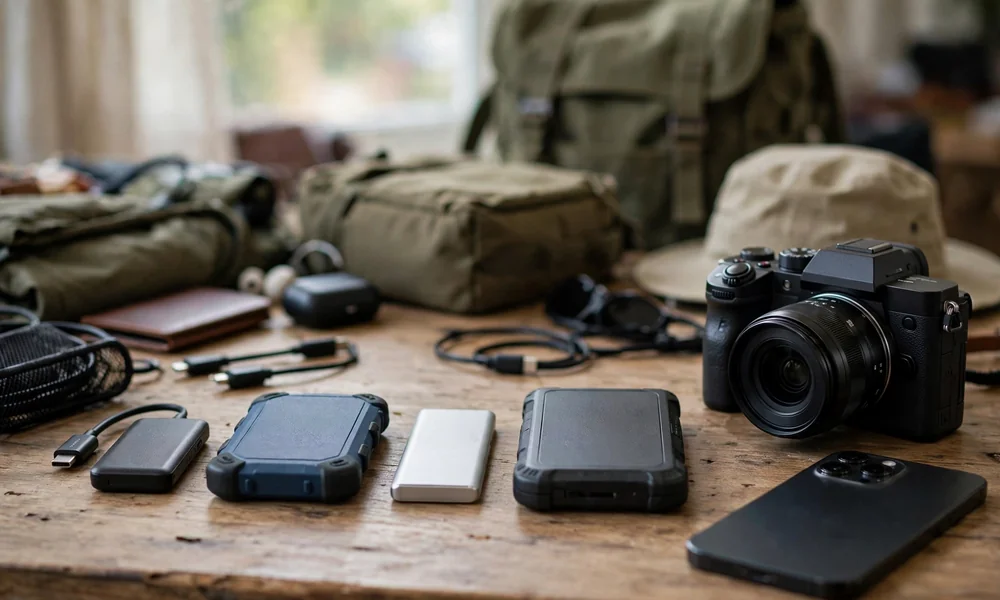
The honest test is where the drive spends its time. If it lives on a desk, plugged into the same computer every day, a slim drive is the better buy: it is cheaper, it runs cooler, and it looks better. If it travels in a bag, goes on shoots, or gets handed between people, the rugged drive is the better buy, because a single drop onto concrete is the difference between a working drive and a dead one. Photographers and videographers should default to rugged; desk workers should default to slim.
What toughness ratings actually mean
Drop ratings are tested on concrete from a stated height, usually 2 or 3 metres, and a drive that passes is genuinely hard to kill by dropping. Water and dust ratings use the IP scale: IP55 means protected against dust and water jets, IP67 means it can be submerged briefly, and most rugged drives sit at IP55, which is enough for rain and splashes.
What to check before you buy
Compatibility is the first check, and it is the one that causes the most returns. A Thunderbolt drive will not reach full speed on a USB-only port, a USB4 drive needs a USB4 port, and some older computers only have USB-A, which needs an adapter. Check your computer’s ports before you order: the drive, the cable and the port all have to match.
Security is the second check. Many drives now offer hardware encryption, which protects your files if the drive is lost or stolen, and it is worth having if the drive carries work files, client photos or personal documents. Software encryption is a weaker substitute: it is slower, it depends on the computer, and it is easy to forget to enable.

The third check is the warranty and the brand’s record. Most good drives carry a three to five year warranty, and the brands that have been making flash storage for years tend to honour it without a fight. A no-name drive that is 20 percent cheaper is a false economy if it dies in year two with no support.
Finally, think about how the drive fits the rest of your setup. A drive that is always plugged in needs a short cable and a stable spot on the desk, and a USB hub with a dedicated high-speed port stops it competing with your other devices. If the drive backs up a laptop, our guide to laptop stands covers the ones that keep it cool. For a gaming machine, our gaming laptop guide explains which storage setups keep load times short. The drive is one part of a system, and the system works best when every part matches.
Buyer checklist
- Check your computer’s ports first, and buy a drive whose speed matches them; a faster drive on a slow port is wasted money.
- Buy 1 terabyte as the minimum, 2 terabytes for photo and video work, and the next size up from your current collection.
- Choose rugged if the drive travels, slim if it lives on a desk, and check the drop and water ratings before deciding.
- Prefer a metal body and a drive that holds speed through long transfers.
- Pick hardware encryption if the drive will carry work files, client material or anything you would not want a stranger to read.
- Confirm the cables in the box cover USB-C and USB-A, and keep the receipt for the three to five year warranty.
Frequently asked questions
Can I run games directly from an external SSD?
Yes, on most modern systems. Games load nearly as fast from a good external SSD as from an internal one, and the difference from a hard drive is dramatic.
Will an external SSD work with my phone?
Most modern phones with USB-C support external storage, and an SSD works as a fast way to move photos and video off the phone. Some phones limit power to the port, so very large drives can be unreliable. A 1 terabyte drive is the safe choice for phone use.
How long do external SSDs last?
A typical drive lasts five to ten years of normal use, and the flash inside is rated for hundreds of terabytes of writes, far more than most people will ever reach.
Do I need to format a new external SSD?
Most drives arrive formatted as exFAT, which works on Windows and Mac without changes, and that is the right choice if you move the drive between computers. APFS suits Mac-only use and NTFS suits Windows-only use, but exFAT is the safe default.
Is an external SSD good for backups?
Yes, it is one of the best backup targets available: fast enough that backups actually finish, tough enough to survive being carried, and silent.
Why is my new SSD slower than advertised?
The usual cause is the port or the cable. A drive plugged into a 5 gigabit port, or through a cheap hub, will run at a fraction of its rated speed.
The bottom line
The external SSDs worth carrying in 2026 are the ones that match your computer, your capacity and your life. A 1 or 2 terabyte drive at USB 3.2 Gen 2 speed covers almost everyone, rugged models are the smart default for travel, and USB4 or Thunderbolt only earns its premium for heavy video work. Check your ports, buy one size up, and pick a drive with a real warranty. Do that, and the drive will quietly disappear into your routine.


