
Keyboard Covers That Protect Without Slowing You Down in 2026
A keyboard cover is the cheapest insurance a laptop ever gets. A thin skin of silicone or plastic sits over the keys and stops the things that kill keyboards: crumbs, dust, hair, and the coffee that tips over at the worst moment. A good cover does that without making typing feel mushy, trapping heat, or peeling at the corners. A bad one does the opposite. This guide explains the materials, the fit, and the trade-offs that decide whether a cover protects your keyboard or ruins its feel.
Key Takeaways
- Silicone covers are soft, grippy, and best at spill protection; TPU covers are thinner, clearer, and closer to typing on bare keys.
- Fit is everything: a cover made for your exact model stays put, while a universal one slides, bubbles, and catches your fingers.
- Expect a small change in typing feel; if keys feel dead, the cover is too thick or the wrong material.
- A cover stops splashes and crumbs, not a full glass of water, and nothing for drops or a cracked screen.
- Wash the cover weekly with mild soap and water, and take it off before closing a tight lid.
Silicone vs TPU vs Hard Shell
Three materials cover almost everything on sale in 2026. Silicone is the most common. It is soft, slightly tacky, and moulds itself to the shape of each key. That grip is why silicone covers stay in place and seal so tightly against spills: the material clings to the keys and leaves almost no gap for liquid. The trade is feel. Silicone adds a soft layer between finger and key, which dulls the crisp click of a mechanical or scissor keyboard and can make fast typing feel spongy. Silicone also attracts dust and lint, and clear silicone slowly yellows in sunlight.
TPU, or thermoplastic polyurethane, is the thinner, firmer cousin: usually 0.1 to 0.3 millimetres thick, against 0.3 to 0.5 for silicone, and closer to typing on bare keys. It is clearer too, so key legends stay easy to read, and it does not yellow as fast. The trade is grip and sealing. TPU is smoother and less tacky, so it can shift during heavy typing, and its seal is good but not as tight as silicone. Choose TPU if typing feel matters most and your laptop lives mostly on a desk.
Hard shell covers are a different product: a rigid plastic or polycarbonate shell that clips over the keyboard, or a keyboard case that doubles as a tablet lid. Hard covers protect against knocks and scratches as well as dust, without changing the feel of the keys, because your fingers never touch them. The trade is bulk and fit. A hard shell adds weight and thickness, fits only the exact model it was made for, and does nothing for crumbs, which fall straight through the gaps.
Fit: The Exact-Model Rule
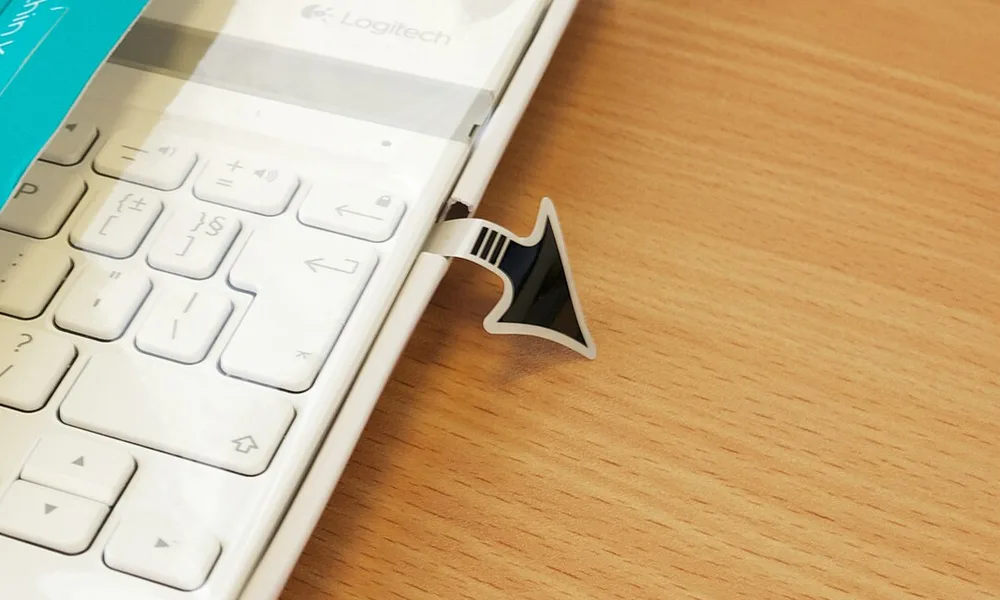
A keyboard cover is one of the few accessories where the exact model matters more than the brand. Keyboards differ in tiny ways: the size of the space bar, the shape of the enter key, the position of the function row, and the spacing between keys. A cover cut for one model will not sit properly on another. It will bubble, stretch, and lift at the corners, and every lift lets crumbs and liquid in.
Before you buy, find your exact model number, printed on the bottom of the laptop or in the system settings, and search for a cover that names that model, not just the laptop line. A cover that claims to fit a whole range is a universal cover, and universal covers are a compromise: they fit many keyboards badly rather than one keyboard well.

Check the layout too. A US keyboard has a wide enter key and a long left shift; a UK keyboard has a tall enter key and an extra key beside it; a Japanese keyboard is different again. A cover with the wrong layout will not line up with your keys, and no stretching will fix it. If you bought the laptop abroad, check the layout before you order. Our guide to choosing a keyboard explains how layouts differ and which suits the way you type.
When the cover arrives, test the fit. Lay it over the keys and press each corner: it should sit flat, with no bubbles and no edges lifting. Type a paragraph and watch whether it creeps. Close the lid slowly and check it does not press against the screen. If it fails any test, send it back. A cover that does not fit is worse than none, because it gives you the confidence to be careless while protecting nothing.
Typing Feel: What Changes Under Your Fingers
Every cover changes typing feel a little; the question is how much you will notice. A thin TPU cover adds almost nothing: the keys travel the same distance, the click is still there, and after a day your fingers stop noticing it. A thick silicone cover absorbs some key travel, so each press feels muted rather than crisp. Fast typists notice this most, because the soft landing blurs the rhythm of the keys.
The other change is friction. Silicone is grippy, and that grip slows your fingers slightly as they move between keys. If you lift your fingers between keys, you will barely notice. If you slide your fingers across the keyboard, as many fast typists do, the grip can feel sticky and tiring. TPU is smoother and closer to bare keys, which is why touch typists usually prefer it.

If your wrists ache, do not blame the cover: the height it adds is a fraction of a millimetre. If typing hurts, the setup is the problem, and our guide to wrist rests covers the supports that actually help.
Spill Protection: What a Cover Can and Cannot Save
A keyboard cover stops the most common accidents: a splash from a mug, crumbs from lunch, and the slow build-up of dust and hair. The cover catches liquid on its surface and keeps it out of the switches, and if you lift it off quickly and wipe it, the keyboard underneath is usually untouched. A spilled coffee is one of the most common ways a laptop dies, and a cover turns it into a minor clean-up.
What a cover cannot do is stop a large spill. Pour a full glass over a covered keyboard and liquid will find its way around the edges and into the machine. A cover buys you seconds, not immunity. If a big spill happens, turn the laptop off, unplug it, turn it upside down, and let it dry for a day or two before switching it on.
A cover also does nothing for drops, knocks, or a cracked screen. It protects the keys, not the machine. For the whole laptop, use a sleeve or case, and for the screen, a thin protective film works the same way. Our guide to screen protectors explains which films are worth buying and which peel, bubble, or dull the display.
Keyboard Cover Types Compared
The four common types, side by side:
| Type | Thickness | Typing feel | Spill protection | Best for |
|---|---|---|---|---|
| Silicone skin | 0.3 to 0.5 mm | Soft, slightly spongy | Excellent | Spills, crumbs, travel |
| TPU skin | 0.1 to 0.3 mm | Close to bare keys | Good | All-day typing |
| Hard shell | 1 to 2 mm | Unchanged | Poor | Knocks, scratches |
| Thin film | Under 0.1 mm | Almost unchanged | Fair | Dust, key legends |
Cleaning and Hygiene
A keyboard is one of the dirtiest objects you touch every day, and a cover makes it easy to keep clean: it takes the dirt instead of the keys. Peel it off once a week, rinse it under warm water with a drop of mild dish soap, and let it dry flat.
Do not use harsh cleaners, alcohol, or bleach on a silicone or TPU cover: they can cloud the material, make it sticky, or speed up yellowing. Mild soap and water is enough. Do not put the cover in a dishwasher or washing machine, and do not dry it on a radiator: heat can warp it out of shape, and a warped cover will never sit flat again.
When a Cover Hurts More Than It Helps
Covers are not right for every laptop. The first problem case is a laptop with a very thin lid and a tight gap between keyboard and screen when closed. Some ultrabooks have almost no clearance, and a cover left on the keyboard can press against the screen and leave marks, or crack it. If yours is one of these, take the cover off before closing the lid.
The second case is heat. A laptop cools itself partly through the keyboard, and a cover insulates it slightly. For everyday work this makes no difference, but for heavy work, gaming, or video rendering, a thick silicone cover can add a degree or two inside. If your laptop already runs hot, that is one more thing working against it; a thin TPU cover insulates less, and taking the cover off during heavy work removes the issue.
Checklist: Before You Buy a Keyboard Cover
- Find your exact laptop model number and buy a cover that names it.
- Check the keyboard layout matches yours.
- Choose silicone for spills and travel, TPU for all-day typing feel.
- Keep it thin: under 0.3 millimetres for TPU, under 0.5 for silicone.
- Check the cover sits flat, with no bubbles, and does not press the screen when the lid closes.
- Pick a clear cover so the key legends stay easy to read.
Frequently Asked Questions
Do keyboard covers ruin typing feel?
A thin TPU cover barely changes it. A thick silicone cover softens the keys and adds grip, which fast typists notice most. If keys feel dead, the cover is too thick or the wrong material for you.
Will a keyboard cover protect against a spilled coffee?
Against a splash, yes: the cover catches the liquid and keeps it out of the switches. Against a full glass, no: liquid finds its way around the edges. A cover buys you seconds, so switch off and let it dry.
Can I leave a keyboard cover on when I close the laptop?
Usually yes. Some ultrabooks have almost no gap between keyboard and screen, and a cover can press against the display and leave marks. Test it once, and if the lid does not close easily, take the cover off first.
How do I clean a silicone keyboard cover?
Peel it off, wash it under warm water with a drop of mild dish soap, and let it dry flat. Do not use alcohol, bleach, or harsh cleaners, and do not radiator-dry it: heat can warp it.
Do keyboard covers cause overheating?
Barely. A cover insulates the keyboard slightly, adding a degree or two during heavy work. For everyday use it makes no difference. If your laptop runs hot, take the cover off for gaming or video rendering.
How long does a keyboard cover last?
Six months to two years, depending on material and washing. Replace it when it yellows, goes sticky, loses its shape, or stops sitting flat on the keys.
The Bottom Line
A keyboard cover is a small purchase that stops the most common keyboard accidents for the price of a lunch. Buy one made for your exact laptop model, choose silicone if spills worry you and TPU if typing feel matters most, and keep it thin. Wash it weekly, take it off before closing a tight-fitting lid, and replace it when it yellows or stops sitting flat. Done that way, a cover disappears under your fingers and does its job quietly for years.


