
A computer mouse is the thing your hand touches more than any other object on your desk, and it is the purchase most people think about least. We research laptops for weeks and then grab whatever mouse is cheapest, then wonder why our wrist aches by three in the afternoon or why the cursor never quite lands where we meant it to. A good mouse is not about gaming reflexes or impressive specifications. It is about fit, comfort, and a sensor that does what your hand asks without arguing, and the difference is something you feel within the first hour. This guide explains what makes a computer mouse worth the money in 2026, which numbers matter and which are marketing, and how to choose one your hand will still like a year from now.
Key Takeaways
- Fit matters more than any specification: a mouse shaped for your hand size and grip style will feel better and hurt less than a technically superior mouse that does not fit.
- Sensor quality beats DPI numbers, because a flawless sensor at 800 DPI is more accurate than a jittery sensor boasting 26,000 DPI you will never use.
- Weight is personal, but most people are happiest between 60 and 90 grams, light enough to move easily and heavy enough to feel planted.
- Modern wireless mice have no meaningful lag for office work and most gaming, so choose wireless for freedom and wired for simplicity and zero charging.
- Test the scroll wheel and the side buttons before you commit, because these are the parts you touch hundreds of times a day and the parts that fail first.
Why the Mouse Matters More Than You Think
Your mouse is the main way your intentions reach your computer. Every click, drag, and scroll passes through it, and a mouse that fights you adds a tiny friction to each of those actions. Multiplied across a working day, that friction becomes fatigue, mistakes, and a sore wrist. A mouse that fits well disappears in the same way a good chair does: you stop noticing it, and your attention stays on the work instead of on your hand.
Size and Shape: The Fit That Decides Everything
Mouse shape is the first thing to get right, and it starts with your hand. Measure your hand from the base of your palm to the tip of your middle finger: under 17 centimetres is a small hand, 17 to 19 is medium, and over 19 is large. A small hand on a large mouse will strain to reach the buttons, while a large hand on a small mouse will cramp around it. Most manufacturers publish their mouse dimensions, so check the length and width before you buy, and be suspicious of any mouse described as one size fits all, because hands are not one size.
Palm, claw, and fingertip grips
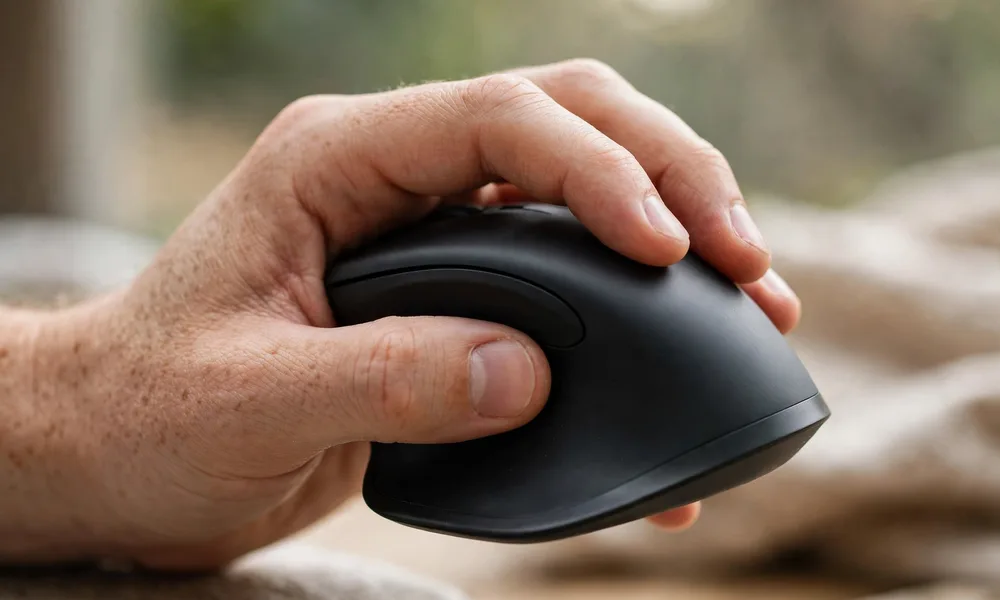
How you hold a mouse decides which shape suits you. A palm grip rests the whole hand on the mouse, and suits larger, higher mice with a long body and a gentle hump. A claw grip arches the palm above the mouse with the fingertips on the buttons, and suits medium mice with a pronounced hump towards the back. A fingertip grip touches the mouse only with the fingertips, and suits small, low, light mice that can be flicked around quickly. Most people use a palm grip for office work and a claw or fingertip grip for gaming, and the honest test is to hold the mouse the way you naturally would for thirty seconds: if your hand relaxes, the grip is right, and if it tenses, it is not.
Sensor, DPI, and Polling Rate: What the Numbers Mean
DPI, or dots per inch, is the number manufacturers shout about, and it is the number that matters least. DPI decides how far the cursor moves for a given movement of your hand: higher DPI means the cursor moves further. Most people work happily between 800 and 1,600 DPI, and even professional gamers rarely go above 3,200. A mouse advertising 26,000 DPI is not more accurate than one advertising 12,000 DPI; it is simply capable of a sensitivity nobody can use. Set the DPI to a level where you can cross the screen with a comfortable movement of your wrist, and ignore the maximum on the box.
| Use | DPI | Polling rate | Weight |
|---|---|---|---|
| Office and browsing | 800–1,200 | 125–500Hz | 70–100g |
| Photo and video editing | 800–1,600 | 500Hz | 80–110g |
| General gaming | 800–2,400 | 1,000Hz | 60–90g |
| Competitive gaming | 400–1,600 | 1,000Hz or more | 50–70g |
| Travel | 800–1,200 | 125Hz | Under 70g |
Wired Versus Wireless in 2026
Wireless mice have closed the gap, and for most people the choice is now about convenience rather than performance. A modern wireless mouse using a 2.4GHz dongle has no perceptible lag for office work, editing, or casual gaming, and Bluetooth models connect to almost anything without a dongle at all. The trade-off is batteries: a wireless mouse needs charging or new batteries, and it will always run out at the worst possible moment, so keep a cable or a spare battery nearby if your work depends on it.

Buttons, Scroll Wheel, and the Details That Add Up
The parts you touch most are the parts that fail first, so they deserve a close look. The main buttons should click crisply without feeling stiff or mushy, and they should not wobble from side to side. Cheap switches feel fine in the shop and develop a double-click fault after a year, while good switches from reputable makers last tens of millions of clicks. Side buttons are worth having if you browse a lot, since forward and back under your thumb saves a surprising amount of time, but they should be placed where your thumb rests naturally, not where you have to reach for them.
Matching a Mouse to How You Work
The right mouse depends on what your days look like. Office workers who live in documents and email should prioritise comfort and quiet clicks, and an ergonomic mouse with a couple of side buttons is usually the best investment, since it is the mouse you will hold for eight hours. Photo and video editors should prioritise sensor accuracy and a precise scroll wheel, and a slightly heavier mouse often helps, because the extra weight steadies fine movements. Gamers should prioritise a light body, a flawless sensor, and a shape that suits their grip, and they should ignore RGB lighting, which adds weight and cost and does nothing for the game.
Think about the rest of the desk too. A mouse is part of a setup, and it works best when the keyboard, the screen, and the chair are all pulling in the same direction. A good laptop deserves a mouse that matches it, and if you work at a desk with a separate keyboard, a wireless keyboard and a wireless mouse that share one receiver keep the desk tidy and free up a USB port. A large, smooth mouse pad is the cheapest upgrade of all, and it makes any mouse feel better, because the sensor tracks more evenly and the mouse glides instead of dragging.

Mouse Buying Checklist
- Measure your hand and match the mouse length to it: under 17cm is small, 17 to 19cm is medium, over 19cm is large.
- Identify your grip style and choose a shape that suits it, palm for large high mice, claw for medium humped mice, fingertip for small light mice.
- Pick a weight between 60 and 90 grams unless you know you prefer heavier, and remember that wireless mice are heavier than wired ones.
- Choose wireless for freedom or wired for simplicity, and prefer a wireless mouse that also works while charging over USB-C.
- Test the scroll wheel and the side buttons, since these are the parts you use most and the parts that fail first.
- Buy from a shop with a good return policy, and use the mouse for a full working day before you decide to keep it.
Frequently Asked Questions
How much should I spend on a computer mouse?
For most people, the sweet spot is a mid-priced mouse from a reputable brand, which buys you a good sensor, decent switches, and a shape that has been tested on real hands. Very cheap mice cut corners on the sensor and the switches, and they are the ones that develop double-click faults and jittery cursors. Very expensive mice are aimed at competitive gamers, and their extra polling rate and lower weight are wasted on office work. Spend enough to get comfort and reliability, and no more.
Are expensive gaming mice worth it for office work?
Usually not. A gaming mouse is light, fast, and full of buttons, which sounds useful, but its shape is tuned for claw and fingertip grips, its clicks are tuned for speed rather than comfort, and its software is often a chore. An ergonomic office mouse will feel better across an eight-hour day, and it costs less. The one exception is if you genuinely prefer a light mouse and a low profile, in which case a simple gaming mouse without the extra buttons can be a fine office mouse.
Is a vertical mouse better for wrist pain?
A vertical mouse can help, because it holds your hand in a handshake position that twists the forearm less than a flat mouse. Many people with wrist pain find real relief from one, but it takes a few days to get used to, and it is not a cure: the best fix for wrist pain is a good chair, a keyboard at the right height, and regular breaks. If the pain persists, see a doctor rather than buying a more expensive mouse.
How long do wireless mouse batteries last?
It varies widely. A basic Bluetooth office mouse can last a year on a single AA battery, while a high-performance gaming mouse polling at 1,000Hz might need charging every week. Rechargeable mice are more convenient than disposable batteries, and a mouse that works while charging over USB-C is the most forgiving option of all. Check the battery life in real reviews, not just on the box, since manufacturers measure it in the most flattering conditions.
Can I use any mouse with a Mac or a Chromebook?
Almost any USB or Bluetooth mouse works with a Mac or a Chromebook for basic pointing and clicking, but the extra buttons and the scroll wheel may need the manufacturer’s software, which is not always available on every platform. If you use a Mac, check that the mouse supports macOS properly, and if you use a Chromebook, prefer a Bluetooth mouse, since ChromeOS handles Bluetooth mice well. A docking station with spare USB ports is a simple way to connect a wired mouse to a laptop that has run out of ports.
How do I clean a computer mouse?
Unplug it or switch it off, then wipe the body with a slightly damp cloth and a little mild soap, and use a dry toothbrush or a wooden toothpick to clear dust from the sensor opening and the gaps around the buttons. Do not use harsh cleaners or get water inside the mouse, and clean the scroll wheel by rolling it against a cloth. A quick clean every few weeks keeps the buttons clicking properly and the sensor tracking smoothly.
The Bottom Line
The best computer mouse in 2026 is the one that fits your hand, suits your grip, and disappears while you work. Ignore the biggest DPI number on the box, pay attention to size, shape, weight, and the feel of the buttons and the scroll wheel, and choose wireless or wired based on how you actually use your desk. Get those things right, and the mouse becomes the part of your setup you never think about, which is exactly what a good mouse should be.


