
A slow drive makes everything feel slow. The computer takes a minute to wake up, programs open one at a time like they are queuing for permission, and copying a folder of photos becomes a reason to go and make tea. A solid-state drive changes all of that in a single swap. Inside an SSD there are no spinning discs, just flash memory that answers instantly. The best SSDs of 2026 are faster than the hard drives they replace, cheaper and tougher than ever, and for most people the single best upgrade a computer can get.
What Makes an SSD Good
The first thing to judge is speed, and it matters in two ways. Sequential speed is how fast the drive reads and writes large files, the number printed on the box in thousands of megabytes per second. Random speed is how quickly it handles lots of small files at once, which is what booting up, opening programs and loading games actually involve. A drive can boast a huge headline number and still feel sluggish if its random performance is poor, so both matter. A good modern NVMe drive feels instant, and the gap between a fast drive and a very fast one is far smaller than the gap between any SSD and a hard drive. Cheaper drives can also slow down sharply once their small cache fills up during a big copy, so sustained-write reviews are worth reading.
The second thing is endurance: how much data the drive can write over its lifetime before its memory cells wear out. It is measured in terabytes written, and for most people it is a number they will never come close to reaching. A typical home user writes only a few terabytes a year, while even a modest modern SSD is rated for hundreds. Heavy users who edit video every day should look for a higher rating and a longer warranty, but for everyone else endurance is a box to check rather than a worry. A five-year warranty from a maker with a good reputation is a reassuring sign.
The Main Types of SSD
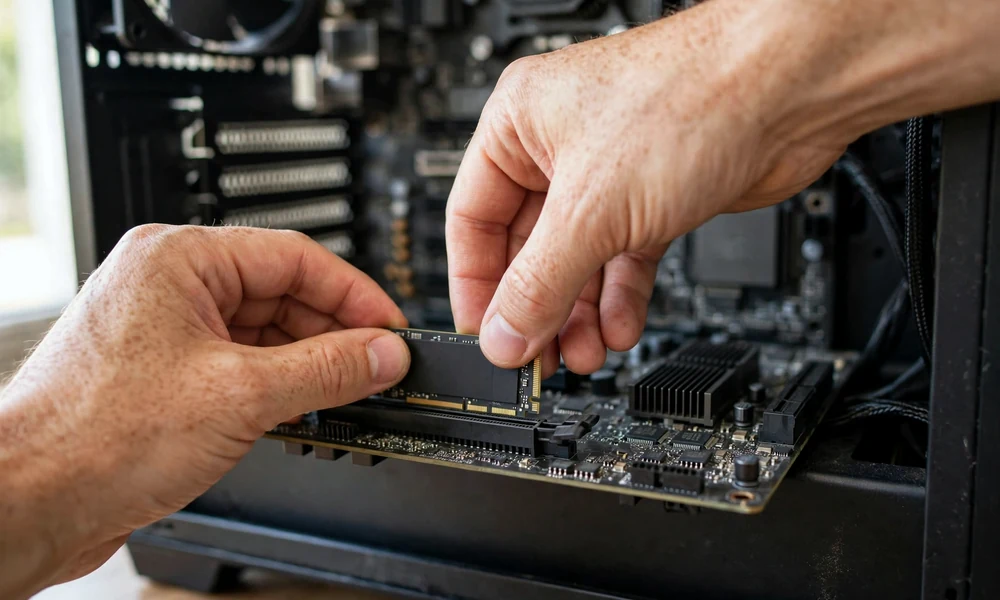
NVMe M.2 drives are the standard for most computers today. They are small sticks about the length of a finger that slot straight onto the motherboard, with no cables at all. They use the PCIe connection, which gives them far more room to move data than the older SATA connection, so the fastest ones read at several thousand megabytes per second. Most desktops and laptops sold in the last few years have at least one M.2 slot, and many have two. The two common lengths are 2280, the full-size stick, and 2242, a shorter one used in some compact laptops and handhelds, so it pays to check which length a machine takes before buying.
SATA SSDs in the 2.5-inch size are the older shape, the same size as a laptop hard drive, and they connect with the same cables. They are limited to around 550 megabytes per second, which sounds slow next to NVMe, but it is still five or six times faster than a spinning hard drive, and for an older machine it is a transformation. They are the right choice for breathing new life into a laptop or desktop that has no M.2 slot, and they are usually the cheapest way to get a large amount of solid-state storage. A one or two terabyte SATA drive is often the best value upgrade for a family computer.

How Much Storage Do You Need
For most people, one terabyte is the sweet spot in 2026. It holds the operating system, a healthy collection of programs, and a good library of photos and documents, with room to spare. A 500 gigabyte drive can work for a light user who keeps most things in the cloud, but it fills up faster than expected, and modern games can each take a hundred gigabytes or more. Two terabytes is the comfortable choice for a gamer or a photographer, and four terabytes suits someone who edits video or keeps a whole media library on one machine. Bigger drives also tend to last longer and run slightly faster, because they have more flash chips to spread the work across. Leaving a fifth of the drive empty keeps it at its best, and a second, cheaper drive for files is a tidy setup.
The Best SSDs of 2026
The best overall SSD of 2026 is a fast PCIe 4.0 NVMe drive in the one or two terabyte size, the kind that suits almost any modern desktop or laptop. It reads at several thousand megabytes per second, which makes booting, loading games and opening large files feel instant. It keeps its speed up during long writes instead of fading after a few seconds, and it comes with a five-year warranty and a solid endurance rating. It is not the fastest drive on the market, and it is not the cheapest, but it is the one that gets the balance right: quick, reliable, cool-running and fairly priced. For most buyers, this is the drive to get, and there is little reason to look further.
The best SSD for gaming is a fast NVMe drive with a heatsink, in two terabytes. Games load from storage constantly, streaming textures and levels as the player moves, and a quick drive shortens loading screens and cuts stutter in open-world games. The heatsink matters because a drive that gets hot will slow itself down to cool off, right in the middle of a long session. Two terabytes holds a decent library without constant deleting and reinstalling, and the same drive works in a PlayStation 5, which needs a fast PCIe 4.0 drive with a heatsink to expand its storage. For a gaming PC or a console, this is the pick that makes the most sense.
The best SSD for an older computer is a 2.5-inch SATA drive, and it is the most dramatic upgrade of the lot. Swapping a spinning hard drive for a SATA SSD can take a ten-year-old laptop from a two-minute boot to under thirty seconds, and programs that used to crawl will open in a snap. It costs far less than a new machine, and the swap itself is simple: clone the old drive, swap the two, and the computer is the same one, only faster. For a family laptop, an office desktop or a machine handed down to a child, a SATA SSD is the cheapest way to make it feel new again.
The best SSD for creators is a large, high-endurance NVMe drive, two or four terabytes, built to handle constant writing. Video editing, photo work and 3D rendering write huge files all day, and a drive that slows down under sustained load will stall the whole project. A creator drive keeps its speed for minutes at a time, has an endurance rating measured in thousands of terabytes written, and usually comes with a five-year warranty and software for monitoring its health. It costs more, but for someone whose work lives on the drive, the time saved and the reliability are worth it.
How to Install an SSD
Installing an M.2 drive takes about ten minutes and one small screwdriver. The computer should be switched off and unplugged, and the case or back panel opened to find the M.2 slot. The drive slides into the slot at a slight angle, is pressed flat, and is held down with a single small screw. That is the whole physical job. For a laptop, the manual will show where the slot is, and some machines need the battery disconnected first, which is usually one small plug. It is a job most people can do themselves, and there are clear video guides for every common model.
The software side takes a little longer but is straightforward. If the SSD is replacing the old drive, the simplest route is to clone the old drive onto the new one with free cloning software, then swap them over, so nothing needs reinstalling. If it is an extra drive, it just needs formatting in the operating system before it appears. Either way, the first thing to do after installing is to make a backup of anything important, because a new drive is no excuse to skip backups. A fresh drive and a fresh backup together are the real upgrade.
Common Mistakes to Avoid
The biggest mistake is buying the wrong shape. M.2 drives come in different lengths and with different keys, and a drive that does not match the slot will not fit at all. A second mistake is buying a PCIe 5.0 drive for a machine that only has PCIe 4.0 or 3.0 slots: the drive will still work, but it will run at the slower speed of the slot, so the extra money is wasted. Checking the manual or the maker’s specification page before ordering takes two minutes and avoids both problems. A third mistake is choosing the cheapest drive available without checking its sustained write speed, which is how people end up with a drive that is fast on the box and slow in real use. Keep a fifth of the drive free, give it air so it does not throttle, and remember an SSD is not a backup: drives can fail without warning.
How an SSD Fits a Faster Everyday Setup
A fast internal drive is the heart of a quick computer, but it works best as part of a small set of storage that covers every situation. The internal SSD holds the operating system and the programs used every day, while a portable drive carries the files that need to travel. Readers who want that portable half of the setup will find the best external SSDs guide covers tough, pocket-sized drives that plug in over USB and move at speeds a hard drive cannot match. The two together make a tidy system: fast storage at home, fast storage on the move, and nothing left waiting on a spinning disc.
The same thinking applies to the smaller jobs. A flash drive is still the quickest way to hand someone a file, move photos off a camera, or carry a presentation to a meeting, and the best flash drives guide covers the ones worth buying now that slow, flimsy sticks are easy to avoid. And the drive is only as useful as the machine around it, so anyone whose laptop is the real bottleneck should read the best laptops guide before spending on storage alone. A new SSD in an old laptop is a great fix, but sometimes the whole machine is the upgrade that makes sense.
The Verdict
The best SSD of 2026 for most people is a fast one or two terabyte NVMe drive: quick enough that the computer feels instant, reliable enough to forget about, and fairly priced. Gamers should get the same kind of drive with a heatsink and two terabytes of room, creators should spend more on endurance and sustained speed, and anyone with an older machine should fit a SATA SSD and enjoy the transformation. Whatever the choice, match the shape to the slot, leave some space free, and keep a backup. A good SSD is the rare upgrade that makes everything better at once, and once it is fitted, going back to a hard drive feels like going back to dial-up.


