The best video editing software in 2026 is no longer a luxury reserved for studios with deep pockets. A free download can now cut a polished short film, while a phone app can turn a shaky afternoon clip into a video that looks like it took a crew to make. The gap between beginner tools and professional suites has narrowed so much that the hardest part is no longer learning to edit — it is choosing the editor that matches the way you actually work.
That choice matters because editors are built for different kinds of creators. A travel vlogger who posts three times a week needs speed and templates. A wedding filmmaker needs colour tools that hold up on a big screen and a timeline that stays calm under four hours of footage. A small business owner needs clean captions, a logo sting and an export that uploads without a second thought. Pick the wrong tool and every project becomes a small fight; pick the right one and the software disappears, leaving only the story.
This guide compares the strongest video editors of 2026 on the things that decide real projects: how the timeline feels after an hour of cutting, how good the colour and effects tools are, how fast exports run, what the price actually costs over a year, and who each editor genuinely suits. Every pick below has been weighed on daily use, not on a feature list, so you can find your match and start cutting.
Key Takeaways
- DaVinci Resolve is the best free video editor in 2026, with professional colour and audio tools that cost nothing to start.
- Adobe Premiere Pro is the best all-round professional choice, thanks to its huge effects library and smooth workflow with other creative apps.
- Final Cut Pro is the fastest editor for Mac users, with magnetic timeline editing and exports that rarely make you wait.
- CapCut is the best free option for short-form and social video, with templates and auto-captions that cut posting time in half.
- Beginners should start free and upgrade only when a missing feature, not a brand name, is holding a project back.
How to Choose the Best Video Editing Software
Before comparing names, it helps to know what you are really judging. A video editor is a set of trade-offs, and the right balance depends on the videos you make most. The five questions below separate a good purchase from a year of regret, and they apply whether you are spending nothing or paying a monthly subscription.
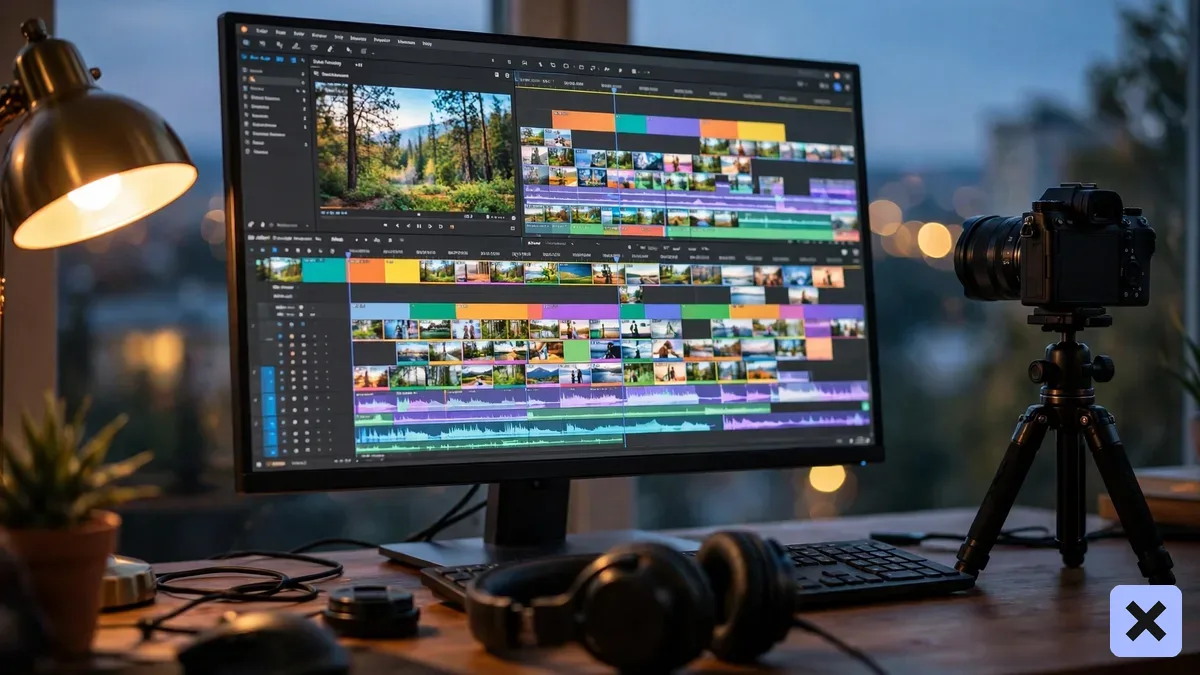
First, look at the timeline. This is where you will spend nearly all of your editing time, so it has to feel natural. A good timeline lets you trim a clip by dragging its edge, slide clips between tracks without them snapping to the wrong place, and zoom from a whole hour of footage down to a single frame. If the timeline fights you in the first ten minutes, it will still be fighting you in month six.
Second, check the colour and effects tools. Colour is what makes footage look expensive: clean skin tones, rich shadows and a consistent look from the first shot to the last. The best editors give you colour wheels, curves and scopes, so you can see exactly what you are changing instead of guessing. Effects matter too, but only the ones you will actually use — transitions, text, stabilisation and noise reduction cover most real projects.
Third, think about export. An editor that makes beautiful timelines but exports slowly, or only in a handful of formats, will waste your evenings. Look for hardware acceleration, 4K support, and direct export presets for the platforms you publish on. A clean export panel with sensible defaults beats a long list of obscure settings every time.
Finally, match the editor to your skill level and your machine. A professional suite on a weak laptop will stutter and crash, while a simple editor on a powerful machine will leave you wishing for more control. Your footage matters too: good editing starts before the timeline, and pairing your editor with the right camera makes every cut look better — our guide to the best mirrorless cameras of 2026 shows which models give editors the cleanest files to work with.

The Best Video Editing Software in 2026 Compared
Five editors stand out this year, and they cover every kind of creator, from the phone-first poster to the full-time professional. The table below gives the short version; the reviews underneath explain who each one is really for.
| Editor | Best For | Price | Platforms | Standout Strength |
|---|---|---|---|---|
| DaVinci Resolve | Free professional editing | Free; Studio $295 one-time | Windows, Mac, Linux | Colour grading |
| Adobe Premiere Pro | All-round professional work | Subscription | Windows, Mac | Effects and integration |
| Final Cut Pro | Mac users who want speed | $299.99 one-time | Mac, iPad | Fast rendering |
| CapCut | Short-form and social video | Free; Pro subscription | Windows, Mac, mobile, web | Templates and captions |
| Filmora | Beginners who want polish | Subscription or one-time | Windows, Mac | Ease of use |
DaVinci Resolve: Best Free Video Editor
DaVinci Resolve is the most generous deal in video editing. The free version includes the same colour grading tools that high-end films are finished with, a capable audio workstation, motion graphics and a timeline that handles multi-camera projects without complaint. For most creators, the free version is not a trial — it is a complete professional editor.
Adobe Premiere Pro: Best All-Round Professional Editor
Premiere Pro is the editor most working professionals reach for, and its strength is breadth. It cuts long-form projects, documentaries, commercials and social clips with equal confidence, and its effects library covers almost anything a client might ask for. Text-based editing lets you cut a scene by deleting words from a transcript, and speech enhancement can rescue audio recorded in a noisy room.
The deeper advantage is how well it plays with other creative tools. Premiere Pro also asks a lot of your machine, so check your hardware before committing — our roundup of the best laptops of 2026 highlights the models that keep heavy timelines running smoothly.
Final Cut Pro: Best Video Editor for Mac
Final Cut Pro is built for one ecosystem, and that focus pays off in speed. The magnetic timeline pulls clips together automatically as you cut, which removes the small gaps and overlaps that slow other editors down. Background rendering means exports often start before you have finished thinking about them, and on Apple silicon the whole experience feels almost instant.
CapCut: Best Free Editor for Short-Form Video
CapCut understands how social video actually gets made. Auto-captions appear in seconds, trending templates turn a rough clip into a finished post, and background removal works without a green screen. It runs on phones, browsers and desktops, so a video can start on a train and finish at a desk.

Filmora: Best Video Editor for Beginners
Filmora is the friendliest editor on this list. Its interface explains itself: big buttons, clear labels and a library of titles, transitions and effects that drag straight onto the timeline. A beginner can finish a first video in an evening and have it look genuinely polished, which is a rare feeling in editing software.
Beginner vs Pro: Which Editor Fits You
The honest answer starts with how much time you will actually spend editing. If you post a short video a few times a week, CapCut or Filmora will carry you further than a professional suite you never fully learn. Their templates, captions and presets exist to remove friction, and friction is what kills a posting habit. A beginner editor that you open every day beats a professional one you avoid.
Your screen matters more than most people expect when judging colour. A laptop panel can hide crushed shadows and shifted skin tones that a proper display reveals instantly, so creators who care about the final look should check our guide to the best monitors of 2026 before trusting their grade. Good footage, a capable machine and an accurate screen together make any editor on this list perform at its best.
Pricing and Value Compared
One-time purchases are the best value for editors who keep their tools for years. Final Cut Pro and DaVinci Resolve Studio each cost roughly what a few months of a subscription would, then keep working indefinitely. Subscriptions make sense when the work demands them: Premiere Pro earns its monthly fee on client projects where its effects library and collaborative tools save billable hours, and Filmora’s low subscription suits creators who want fresh effects without a large upfront payment.
Checklist Before You Choose
- Download the free version or trial first and cut one real project in it before paying anything.
- Check that the editor runs smoothly on your computer with your usual footage, not just on a demo clip.
- Confirm it exports in the resolution and format your audience actually watches.
- Make sure the colour tools match your ambition, from simple presets to full grading controls.
- Count the true yearly cost, including subscriptions, plug-ins and cloud storage.
- Pick the editor you will enjoy opening every day, because the best editor is the one you finish videos in.
Frequently Asked Questions
What is the best video editing software for beginners in 2026?
CapCut is the best starting point for most beginners, because its templates, auto-captions and simple timeline let a first video look good within an hour. Filmora is the best next step when you want more control without professional complexity, and iMovie is the simplest free choice on Apple devices.
What is the best free video editing software?
DaVinci Resolve is the best free video editor overall, offering professional colour grading, audio tools and multi-camera editing at no cost. CapCut is the best free option for short-form social video, while iMovie is the best free editor for casual Apple users.
Is DaVinci Resolve really free?
Yes. The standard version of DaVinci Resolve is free and includes the full editor, colour page, audio workstation and effects tools. The paid Studio version adds advanced features such as noise reduction, stereoscopic tools and higher-resolution processing, but most creators never need them.
Which video editor is best for YouTube?
For YouTube, DaVinci Resolve suits creators who want professional quality for free, Premiere Pro suits channels with heavy production schedules, and Filmora suits creators who want polished videos quickly. CapCut works well for YouTube Shorts alongside longer videos edited elsewhere.
Do I need a powerful computer to edit video?
It depends on your footage. Short clips in 1080p edit happily on most modern laptops, while 4K footage with effects needs a stronger processor, more memory and a good graphics card. Proxy editing — where the software cuts with lighter copies of your files — lets modest machines handle demanding projects.
Can I edit professional video on a phone?
Yes, for many kinds of video. CapCut and similar mobile editors handle short-form content, quick cuts and social posts very well, and a phone is often the fastest way to film and publish. Longer projects, precise colour work and multi-camera edits are still much easier on a desktop editor.
The Bottom Line
The best video editing software in 2026 is the one that fits the videos you actually make. DaVinci Resolve is the best free choice and the strongest all-round value. Premiere Pro is the best professional workhorse. Final Cut Pro is the best pick for Mac owners who want speed and a one-time price. CapCut is the best tool for fast social video, and Filmora and iMovie are the friendliest ways to begin. Download the free version of your top pick, cut one real project in it, and let the timeline tell you whether you have found your editor.