Why the Best Capture Cards in 2026 Are Worth It for Streamers
The best capture cards in 2026 are worth it for streamers because they solve a problem that no webcam or software trick can fix on its own: getting a clean, high-quality video signal from a games console, a second computer, or a camera into your streaming setup. A capture card sits between your source and your computer, takes the video feed, and hands it to your streaming software as if it were just another camera. That means your console gameplay, your camera feed, or your second PC can appear in your stream at full quality, without the lag, compression, or clutter that comes from pointing a webcam at a screen or running everything on one overloaded machine. This guide explains why they earn their place, how to choose one for console play, camera work, or a two-PC setup, and which numbers matter.
Key Takeaways
- A capture card brings an external video source into your computer cleanly, so console games and cameras look sharp.
- Passthrough matters most for console players: it sends the game to your TV with no delay while your computer records a copy.
- Match the card to your resolution and frame rate: 1080p at 60 frames per second suits most streamers, while 4K at 60 is for creators who record in high quality.
- External USB cards are easier to set up and move; internal cards suit dedicated streaming PCs that never move.
- Check software support before you buy, because a card your streaming app does not recognise will waste more time than it saves.
What a Capture Card Does
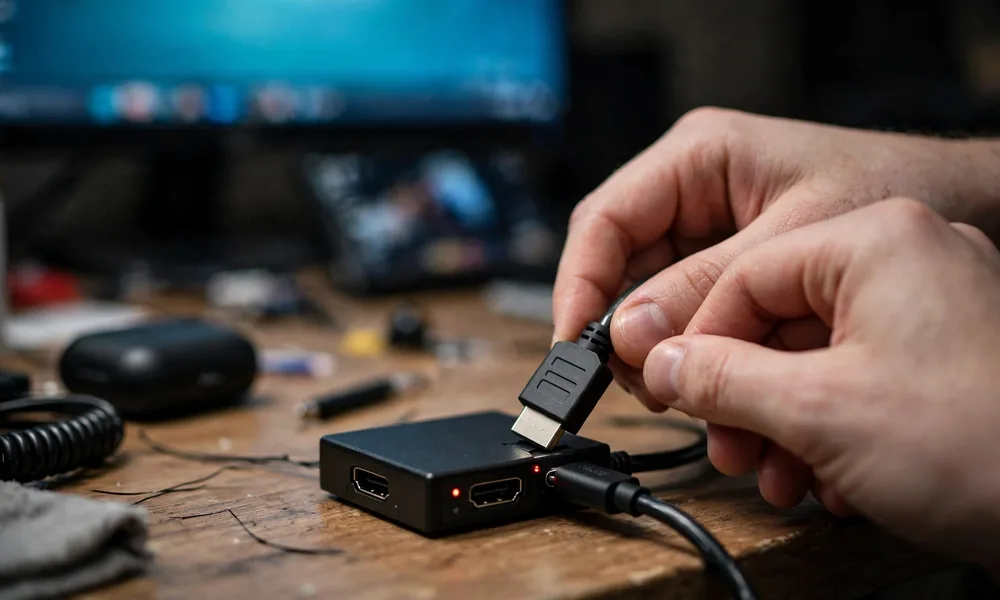
A capture card is a bridge. On one side is a device that produces video: a games console, a mirrorless camera, a second computer, or even an older device with an HDMI output. On the other side is your streaming or recording computer. The card takes the HDMI signal, converts it into a format your computer understands, and delivers it to your streaming software as a video source. Your software then treats it like a camera feed, which means you can add overlays, switch scenes, mix audio, and record or broadcast it. Without a capture card, a console has no easy way to send its picture to a computer at all, and a camera can only connect if it supports a clean video output over USB. The card is what makes those connections possible, and the quality of the card decides how good the picture looks when it arrives. Cheap or mismatched cards introduce delay, drop frames, or wash out colours. Good ones pass the signal through faithfully and stay out of the way.
The most important distinction is between capture and passthrough. Capture is the copy your computer records or streams. Passthrough is the signal that continues to your monitor or television so you can play the game. A good capture card handles both at once: you play on your screen with no noticeable delay, while your computer receives a clean copy to broadcast. That separation is the whole point. If you played from the captured preview on your computer instead, you would feel the delay in every movement, and fast games would become unplayable. Passthrough removes that problem entirely. It is also why a capture card is not the same as a webcam: a webcam films you, while a capture card imports a video signal that already exists. The two work together in a stream, but they do different jobs, and one cannot replace the other.
Why Streamers Actually Need One
Console streamers need a capture card because a console cannot run streaming software the way a PC can. You can stream directly from some consoles, but the built-in options are limited: fewer overlays, less control over audio, and no easy way to add a camera, alerts, or a second source. A capture card moves the work to your computer, where your streaming software gives you full control. PC streamers with a single machine can sometimes get by without one, using software capture to record their own screen. But that approach loads one computer with both the game and the stream, which can cost frames and cause stuttering. A two-PC setup solves that by putting the game on one machine and the stream on another, with a capture card carrying the picture between them. Camera users need one for a different reason: a good camera produces far better video than a webcam, but it needs a way to send that video to the computer, and a capture card is the cleanest route. In each case, the card is not a luxury extra. It is the piece that lets the rest of the setup work at the quality you paid for.
Resolution, Frame Rate, and What the Numbers Mean
Capture card boxes are covered in numbers, and only a few of them matter for your decision. The first is the capture resolution and frame rate: the quality of the copy your computer receives. A card that captures 1080p at 60 frames per second is enough for most streamers, because most viewers watch at 1080p or lower. A card that captures 4K at 30 frames per second sounds better on paper, but 30 frames per second looks less smooth in fast games than 60. A card that captures 4K at 60 is the premium option, and it is worth it only if you record in 4K or your audience watches at that quality. The second number is passthrough: the quality of the signal that reaches your monitor. For console players, passthrough should match or beat what your console outputs, so a 4K console needs a card with 4K passthrough, ideally at 120 frames per second if your monitor supports it. A card with 1080p passthrough will force a 4K console down to 1080p while you play, which defeats the purpose of the console. The third number is latency, which good manufacturers publish and poor ones hide. Low latency matters for passthrough, not for the captured copy, because a delay in what you see makes games feel unresponsive.
External USB Cards vs Internal Cards
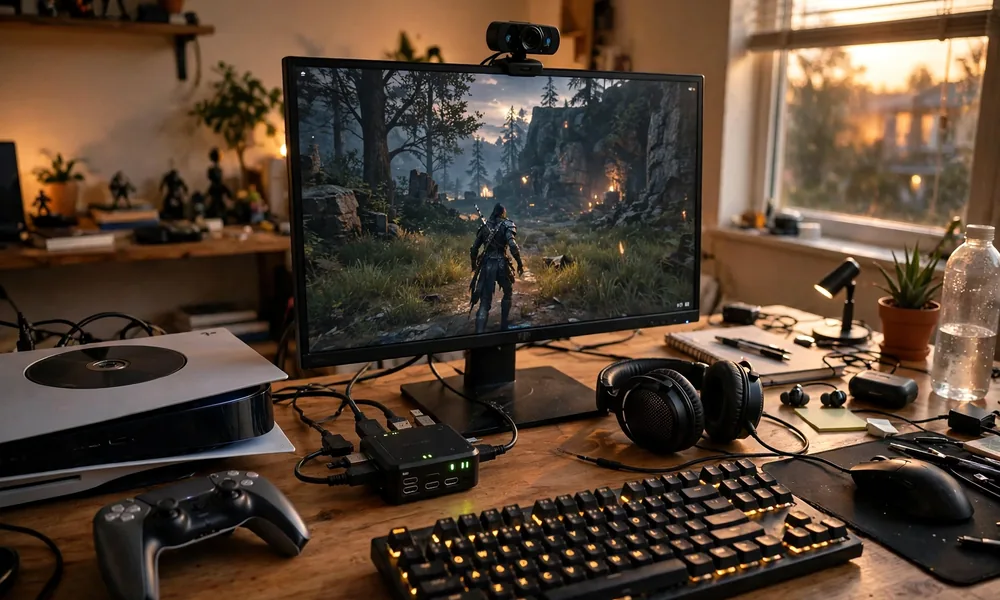
Capture cards come in two forms, and the choice is mostly about how your setup is arranged. External USB cards are small boxes that sit on your desk and connect with a USB cable. They are easy to install, easy to move between computers, and easy to unplug when you travel. They suit laptop streamers, console players, and anyone whose setup changes often. Their limits are bandwidth: a USB connection can carry only so much video, so the highest-end external cards cost more to reach 4K at 60 frames per second. Internal cards slot into a desktop PC and connect directly to the motherboard, which gives them more bandwidth and often a lower price for the same capture quality. They suit dedicated streaming PCs that stay in one place. Their drawback is obvious: they only work in that one computer, and installing one means opening the case. If you stream from a laptop, an internal card is not an option at all. If you have a dedicated streaming PC that never moves, an internal card is usually the better value. Most first-time buyers should start with an external card, because it is simpler, portable, and easy to resell if their setup changes.
Audio, Compatibility, and Software Support
Video gets the attention, but audio is where capture cards most often disappoint. A card should carry the audio from your source along with the video, keeping the two in sync. Some cards do this well; others drift out of sync over a long stream, so the sound slowly falls behind the picture. That drift is hard to notice at first and infuriating once you spot it. Before you buy, check recent reviews for sync complaints, and test your own card with a long recording before your first live stream. Also check how the card handles audio from different sources. A console sends game audio and chat audio together, and you may want to separate them so you can balance them in your streaming software. Some cards and software combinations allow that; others mix everything into one track. If you use a separate microphone for your voice, make sure your streaming software can mix the card audio and the microphone audio without one drowning out the other.
Comparison Table
| Card type | Best for | Capture quality | Portability | Typical price |
|---|---|---|---|---|
| External USB 1080p | Console streaming | 1080p at 60 fps | High | Low to mid |
| External USB 4K | Recording and 4K streams | 4K at 60 fps | High | High |
| Internal PCIe | Dedicated streaming PC | 4K at 60 fps | None | Mid to high |
Common Mistakes to Avoid
The most common mistake is buying a card for the resolution you wish you streamed in, rather than the one you actually stream in. A 4K card will not make a 1080p stream look better. The second mistake is ignoring passthrough: a card that captures beautifully but passes only 1080p to your monitor will make your games look worse while you play. The third is plugging a fast card into a slow USB port and blaming the card for the stutter. The fourth is forgetting about audio sync until viewers complain, by which time the recording is already ruined. The fifth is buying the cheapest card available and discovering it drops frames in fast games or washes out colours in dark scenes. A capture card is a long-term part of your setup, so it is worth spending a little more on one with a good reputation for reliability. Finally, do not buy a card before you know what you will connect to it. A card bought for a console may not suit a camera, and a card bought for a camera may not handle a second PC. Match the card to the source first.
Setup Checklist
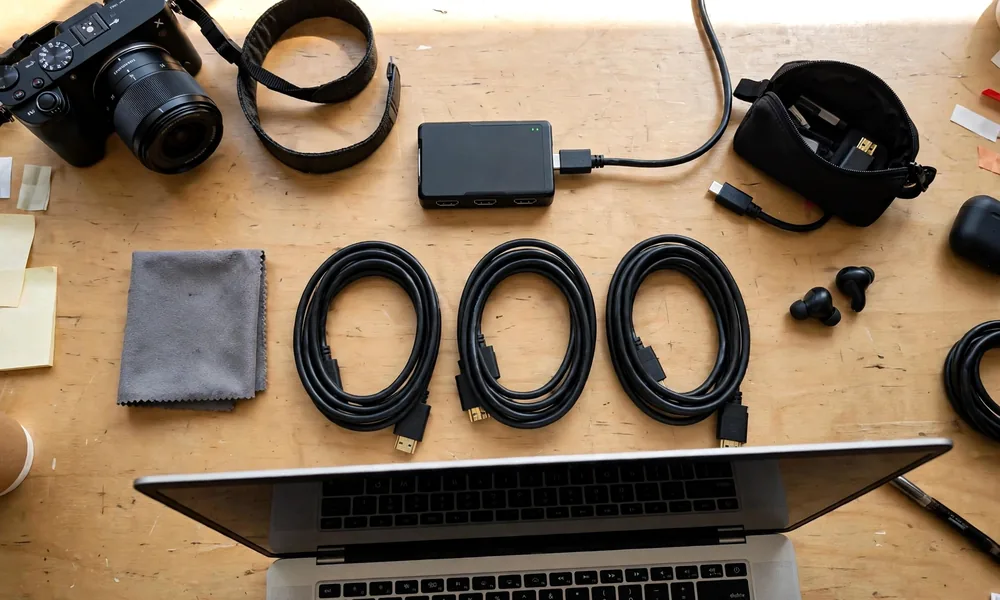
- Write down your capture resolution, frame rate, and passthrough needs before shopping.
- Check that the card supports your operating system and streaming software.
- Plug the card into a fast USB port with enough bandwidth for its rated quality.
- Test audio sync with a long recording before your first live stream.
- Set your console or camera output to match the card.
- Keep drivers updated and re-test after major updates.
Frequently Asked Questions
Do I need a capture card to stream from a console?
Yes, if you want full control over overlays, audio, and scenes; built-in console streaming is limited, and a capture card brings the feed into your software.
Can I use a capture card with a camera?
Yes. If your camera has a clean HDMI output, a capture card turns it into a high-quality webcam feed for your stream or video calls. It usually looks far better than a standard webcam.
Does a capture card add delay to my game?
Not if you use passthrough, which sends the game to your monitor with almost no delay while your computer records a separate copy. Always play from the passthrough display.
Is an external or internal capture card better?
External cards are easier to install and move, which suits most people; internal cards offer more bandwidth and suit a dedicated streaming PC that never moves.
Will a capture card improve my stream quality?
It improves the quality of the source your stream receives, but it will not fix a slow internet connection or a weak computer.
Do I need a capture card for a single-PC stream?
Not always; software capture can record your own screen. A capture card becomes useful when you add a console, a camera, or a second PC, or when software capture costs you frames.
The Bottom Line
The best capture cards in 2026 are worth it because they make the connection between your source and your stream simple, clean, and reliable. Choose a card that matches your real resolution and frame rate, check its passthrough keeps gameplay smooth, and make sure it works with your software and ports.